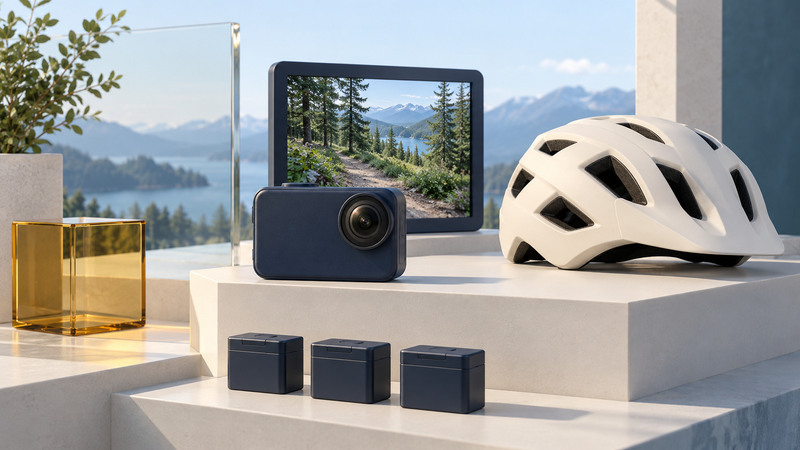
Useful helmet-camera footage depends on what remains visible during movement, whether the sound is intelligible and whether the camera records reliably for the required time. Begin with an approved mounting arrangement, then make a short recording in representative conditions before committing to the full activity.
Resolve helmet compatibility first
Use a helmet appropriate to the activity and follow both the helmet and camera manufacturers' instructions. Confirm that the proposed attachment is permitted for that helmet; camera-mount availability alone is insufficient. Keep the helmet's fit, condition and protective function central to the decision.
The GoPro HERO10 Black manual, pages 114–115, includes helmet-specific cautions and says not to use a tether when mounting that camera on a helmet. This is a useful example of why a retention method suitable elsewhere should not be copied automatically onto head protection.
Do not drill, cut or otherwise modify protective equipment outside its manufacturer's instructions. If compatibility remains unclear, ask the helmet manufacturer and choose a permitted alternative camera position. Set up and adjust the camera while stopped, with attention on the equipment rather than the activity.
Compose from the activity posture
Helmet position changes when a person leans forward, turns their head or looks down at a trail. A frame that looks level while standing upright may point mostly at the ground once the activity begins. Use the actual posture for a stationary preview, then inspect a short representative recording.
Decide what should remain in the picture: the trail ahead, a horizon, handlebars, hands or a task being demonstrated. Leave enough room around that subject for normal head movement and the crop introduced by the selected camera mode. A camera sees where it points, which can differ from where the wearer's eyes glance.
For a demonstration intended for viewers, consistency often matters more than an extremely wide angle. Check whether near objects look distracting, whether the important action occupies enough of the frame and whether rapid head turns make the result difficult to follow. A second, permitted camera position can sometimes explain a task more clearly.
Choose resolution, frame rate and stabilization together
Start with a documented standard preset. Then decide whether the footage needs normal playback, slow motion or extra room for reframing. Higher frame rates create more opportunities for slow playback, but require a suitable exposure and place different demands on processing, storage and battery use.
Electronic stabilization commonly reserves image area for motion correction. The HERO10 manual's video specifications describe the tighter crop of HyperSmooth Boost and the different behavior of other settings. Verify the final recorded frame whenever changing stabilization, lens mode or horizon control.
Inspect a transition between sun and shade and a portion with visible vibration. If the result smears or pulses, compare a standard exposure preset and a simpler stabilization mode. Avoid treating one copied collection of manual settings as appropriate to every light level.
Listen before deciding that the audio worked
Make a test that includes speech at the expected level, ordinary movement and representative wind. Play it through headphones after stopping. Check whether words remain understandable and whether wind processing makes the sound fluctuate.
The HERO10 manual's audio section describes model-specific wind-noise modes. Other cameras may offer different microphone and processing choices. Compare one change at a time, and verify any external microphone's supported adapter and recording path.
If narration is the main teaching element, a separate recording or later voice-over may be clearer than trying to recover speech from heavily distorted wind noise. Keep an identifiable clap or spoken take label when a separate audio recording needs synchronization.
Budget storage and power with a real trial
Use a memory card and battery supported by the camera, and preserve existing files before formatting. Confirm the recording indicator, stop the test cleanly and open the saved file on the device you will edit with. A live preview proves less than a playable recorded file.
Run a longer test in comparable conditions to estimate usable recording time. Track whether the camera stops because of battery, storage, temperature or a configured duration limit. Plan manageable recording segments and verify that important transitions are captured.
Use a repeatable review routine
- Confirm the permitted mount and inspect the equipment before use.
- Record the planned posture, movement, light transition and speech.
- Check the saved file for framing, horizon, detail, audio and duration.
- Change one setting and repeat the same short test.
- Save the successful configuration and retain an original copy of the footage.
The POV recording check provides a compact record for this process. For footage going into a television production, agree on frame rate, sound and delivery requirements with the editor before the shoot; the broadcast-graphics guide also explains why overlays need their own viewing checks.