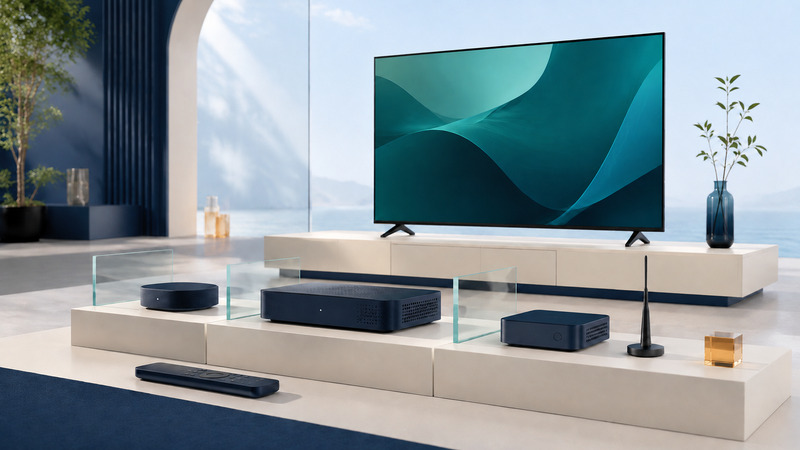
Start with what you want to watch, not the shape of the box. A streaming player, a cable receiver and an antenna tuner may all connect to a television through HDMI, but they obtain programming in different ways. The right choice supports your source, your display and audio equipment, and the way you want to record or navigate programs.
Choose the source before the receiver
Write down the channels, services and personal media you actually use. Identify which require a subscription or account, which arrive through an antenna, and which already work in the television's own apps. A new external player can help an older TV access supported apps, but it does not create access rights to their catalogs.
Swipe the table sideways, or focus it and use the arrow keys.
| Type | Receives | Verify before choosing |
|---|---|---|
| Streaming player | Internet services and supported local-media apps. | Exact apps, country, account requirements, video/audio formats and accessibility features. |
| Provider receiver | Authorized cable, satellite or provider-managed television. | Provider approval, service activation, connection type, fees and recording options. |
| Antenna receiver | Supported local over-the-air broadcasts. | Regional standard, reception, codecs, protected-channel support and display output. |
| Network tuner | Broadcast or other explicitly supported sources, delivered to compatible devices on the home network. | Client apps, playback devices, simultaneous tuners and whether a separate DVR server is needed. |
| DVR | Recordings from its supported source. | Storage, guide data, scheduling, retention, concurrent recordings and playback restrictions. |
These roles can overlap: an antenna receiver may contain a DVR, while a provider box may include streaming apps. Check each claimed function separately. An HDMI input on a television is not a tuner, and a generic tuner does not replace a provider-authorized receiver for encrypted subscription programming.
Download the receiver planning record (TXT) and fill in exact model numbers. “Supports 4K” is too broad if your requirement is a particular HDR format, frame rate, app or accessible remote-control function.
Broadcast support has several layers
Broadcast standards vary by country and service. In the United States, distinguish ATSC 1.0 from ATSC 3.0 reception; a receiver designed only for the former does not become a 3.0 receiver through an ordinary channel rescan. The ATSC's conversion and redistribution guidance addresses the differences between these systems and the conversion needed for legacy delivery.
Separate reception from playback. A device must receive the signal, decode its video and audio, and satisfy any content-protection requirements. A list of detected channels is not proof that all of them will play or record. Verify the exact tuner, firmware, app and playback platform together.
For a concrete limitation, SiliconDust's HDHomeRun Roku documentation currently says DRM-restricted ATSC 3.0 channels are not supported in that app. This is a platform-specific statement, not a claim about every ATSC 3.0 receiver. Recheck manufacturer documentation before purchasing for a particular station.
An antenna also needs a usable signal. The FCC reception maps estimate coverage using an outdoor-antenna model; indoor walls, terrain and nearby obstructions can change results substantially. An antenna advertised with a resolution label does not upgrade the broadcast's picture format. For a computer-based approach, see USB TV tuners and recording.
Trace both picture and sound
Draw the intended path. One arrangement is player → audio receiver → television. Another is player → television, with audio returned to a soundbar or receiver. Every intervening port and device must support the intended signal; checking only the television's specification misses common compatibility problems.
ARC and eARC carry audio back from a compatible television to an audio device over HDMI. They are not substitutes for an antenna input or an internet connection. HDMI Licensing Administrator's eARC explanation describes the audio-return role. Check the specific TV and sound system for supported formats and the ports to use, including what happens with sound from built-in apps.
Use the official HDMI cable categories to choose a cable appropriate to the intended signal. A newer cable cannot add an unsupported decoding feature to a receiver. Preserve a known working output mode when changing settings, especially when testing an older TV through adapters.
Also consider practical control: readable menus, caption settings, audio description where the source supplies it, remote ergonomics and whether the household can recover from a wrong input. HDMI-CEC may coordinate power and input changes, but it can interact with a programmed universal remote. The Harmony support and activity guide explains how to investigate competing commands.
Recording is a separate requirement
A box that plays live television may not record it. Establish whether recording happens locally, on a separate server or in a service's cloud. Check guide-data availability, scheduling, storage management, retention limits and access if the subscription ends. A USB socket may be for service or file playback rather than recording.
Test a scheduled recording with the computer or server in its normal overnight power state. Confirm the recording starts, finishes and plays with sound and captions. A successful five-minute live preview does not establish that a sleeping host will wake for tomorrow's program.
Accept the setup only after a representative test
- Confirm the required source or app works with the intended account and location.
- Test a familiar program and check the actual output mode, sound and captions.
- Change inputs and power the system off and on using the normal household controls.
- Test simultaneous viewing and recording if required.
- Record model numbers, cables, ports, working settings and any unresolved limitation.
If the source works but picture quality disappoints, follow the HD, 4K and HDR content checklist. If the screen itself is the next decision, the LCD television guide separates panel technology from the source feeding it.