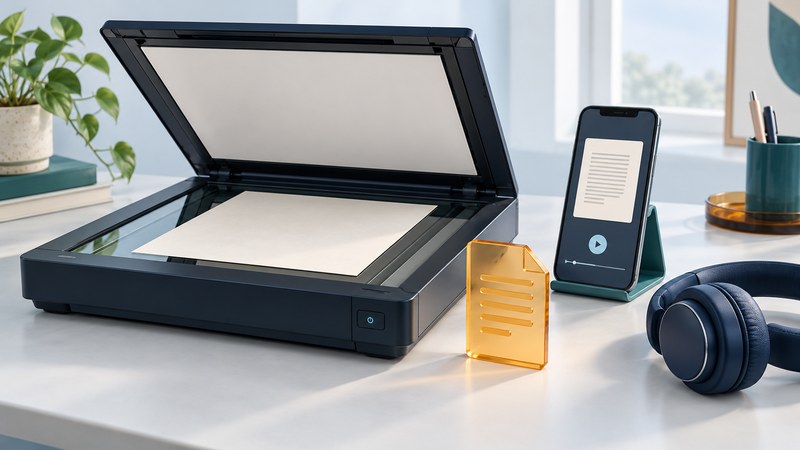
Reading print aloud takes three steps: capture an image, recognize the characters, and send the resulting text to speech. A clear voice can make an OCR error sound convincing, so checking the words and their order is part of the process.
OCR means optical character recognition. It creates text from a picture of text. A scan saved as an image-only PDF can still need OCR; a searchable PDF may contain both the page image and a hidden text layer. Choose a method you can operate independently and test it with an ordinary page before using personal documents.
Choose a capture method
| Method | Useful starting task | What to test |
|---|---|---|
| Phone camera | A letter, short handout or page away from a desk | Framing guidance, steadiness, lighting and whether the full page is captured |
| Flatbed scanner | Loose pages or material that can rest safely against the glass | Accessible scan controls, page orientation, OCR language and saved reading order |
| Dedicated reading device | A repeatable physical setup with simple controls | Independent operation, page placement, navigation, export and local support |
A phone stand can make repeated capture easier, while an automatic feeder may suit loose sheets. Ask for a demonstration with your own representative material before choosing equipment. Books, glossy pages, small print and tightly spaced columns present different challenges.
Try a supported phone workflow
Android: Lookout Documents mode
Open Lookout and choose Documents mode for a whole page. Follow its document-position guidance, capture the page, then review the recognized content with the reading controls. Adjust reading speed and display settings to suit you. Google's Lookout instructions explain Documents mode, reading tools and sharing results. Save needed output before closing the app; Google notes that recent items are cleared when Lookout closes.
iPhone: recognize a photographed page
On a supported device, enable Live Text in Settings → General → Language & Region. Open the page photo, use the text-detection control, and select or copy the recognized text into a suitable reading app. Apple's Live Text instructions cover selection and supported actions. Availability varies by language and region. A capture app with spoken framing guidance may be a better choice when visual selection is difficult.
The copied text can then be read with an app or system reading feature. See Text to Speech for a reading workflow. Prefer an app whose navigation, capture and export controls are accessible with your usual input method.
Capture, check and save
- Prepare the page. Place it flat where possible, with even lighting and no shadow across the text. Keep fingers clear of the content. Avoid glare from a glossy surface.
- Capture all edges. Check orientation and the first and last lines. If the device gives spoken alignment guidance, wait for a stable capture rather than moving throughout the scan.
- Select the correct language. The recognition language affects letter shapes, accents and word interpretation.
- Read the result in order. Follow headings, paragraphs and columns. A two-column page read straight across can merge unrelated sentences.
- Verify consequential details. Check names, dates, amounts, decimal points and negative words against the source through an accessible alternative or trusted assistance.
- Keep both forms when useful. Save the original image and the checked text with related filenames. Add a note if part remains uncertain.
If a table loses its row/column relationships, request an accessible original from the sender. For medication directions, legal notices or financial instructions, use a verified accessible source before acting on uncertain recognized text.
Practice with a known answer
Repeat after improving one capture condition. If the second image works, you have a useful clue about the first failure. A successful short test establishes a workable setup for that material; it does not establish accuracy for handwriting, complex tables or every font.
Choose what leaves the device
Check whether the selected OCR and voice features process files locally, send them to a service, retain a history or sync them to an account. Different modes in one app can have different behavior. Test with nonsensitive material first, and use an approved workflow for workplace or school records.
An AI image description or summary can help explain a scene, but it produces a different result from a faithful transcription. Keep the original and the recognized text available when the exact wording matters. For a long document, ask the publisher for an accessible digital edition: its headings and navigation may be more useful than reconstructing each page.
Explore the library
Assistive Technology: Practical Guides for Everyday Access
Source links appear beside the topics they support. Product instructions and service arrangements were reviewed on October 4, 2026. Check the linked documentation for your exact version, device and location.