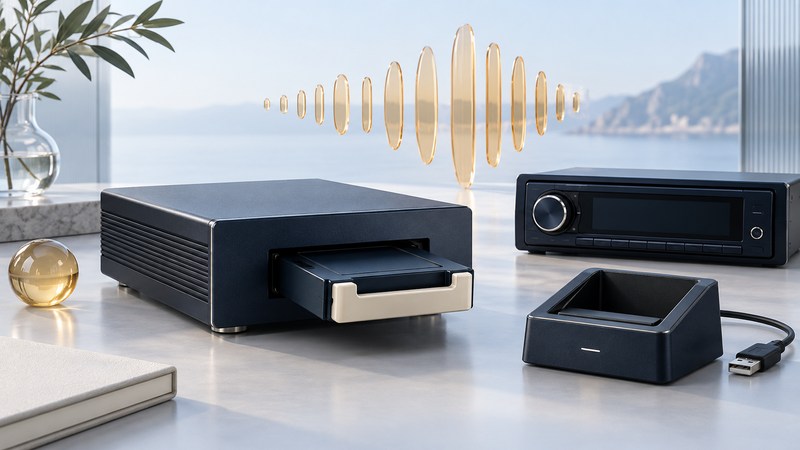
The Mazda PhatBox connects a prepared music cartridge to a compatible car-radio interface. Its spoken prompts help you browse with radio buttons. A useful first test follows one small playlist from the computer to the cartridge and then to the parked car.
Identify all four parts
Record the car model/year, radio model, PhatBox/interface labels, and Digital Media Storage (DMS) cartridge. Add the desktop USB cradle and installed PhatNoise Music Manager version. A photograph of each label helps distinguish an inherited working installation from a collection of parts.
The Mazda North American Operations PhatBox manual, part 0000-81-Z11 describes the radio's CD button selecting the external changer source, displayed as EX. Its interface uses button input and spoken category prompts. Apply the following controls only when your installed radio/interface matches that manual; other PhatNoise installations can use different mappings.
Before editing a working cartridge, preserve accessible files and document the current playlists. Keep any recoverable system/configuration files with that backup. Treat formatting, interface changes and firmware installation as separate repair tasks requiring an exact match and a recovery plan.
Prepare one identifiable playlist
The PhatNoise Car Audio System manual 3102-MAN, desktop/DMS sections describes creating a playlist in Music Manager, dragging it to the DMS in Device view to create a virtual disc, then using Save/Eject DMS and waiting for completion. Those desktop steps are the relevant part of this general manual; its radio-specific control mappings should not be substituted for Mazda's.
- Select a small known collection. Pick three authorized local music files that play on the computer. Give each a distinct title and inspect its album/artist tags.
- Use the existing working Music Manager installation. Create an unmistakably named test playlist and add the three tracks in an order you can recognize.
- Prepare the DMS through the application. Confirm you selected the intended cartridge, transfer the test playlist and use Save/Eject DMS. Wait for the completion indication.
- Move the cartridge with the car system off. Insert it before starting the radio, then make the first playback test while parked.
Keep your test selection small enough to check in full. Record its track order and names on paper. If the result is wrong, you now have a specific discrepancy to investigate without changing hundreds of files.
Learn the Mazda browsing window
In the Mazda manual, Disc Up/Down chooses a browsing mode; Track Up/Down selects within it. After five seconds, the controls return to Track Mode. A category selection affects the next song, so hearing the current song continue can be expected.
| Mode | Selection | What to listen for |
|---|---|---|
| 1: Track | Track within the selection | The recognizable next test song |
| 2: Playlist | Prepared playlist | Your distinctive test-list name |
| 3: Album | Album category | The album tag from the test files |
| 4: Artist | Artist category | The expected artist tag |
| 5: Genre | Genre category | The genre assigned to the test files |
Parked-car exercise: select Playlist Mode, make your choice within the browsing window, then deliberately return to Track Mode and advance. Write down the spoken selection and the song that starts. Repeat with one album. If you pause too long and a track changes, repeat the same sequence more deliberately before concluding that the cartridge is misorganized.
Use the result to choose the next check
No external source: compare the installed radio/interface with Mazda's documentation and have an installer investigate recognition or wiring. Changing music tags cannot resolve an unrecognized interface.
Source available, test playlist absent: revisit the selected DMS and the desktop transfer/eject result. Music plays, prompts absent: inspect Music Manager's documented voice-prompt repair options after preserving the cartridge. One song fails: compare that file with a successful test track before changing system settings.
Stop before interrupting an apparent update or an active cartridge write. The Mazda manual warns that the DMS carries interface firmware, and the general manual requires completed transfers before removal. Keep a record of the last successful playlist, software version and exact symptom so the next repair begins with evidence.
Explore Music Players
Browse music-player guides and earlier reporting, or follow the offline-library setup guide. Primary documentation is linked alongside the guidance. Sources and model details checked October 7, 2026.