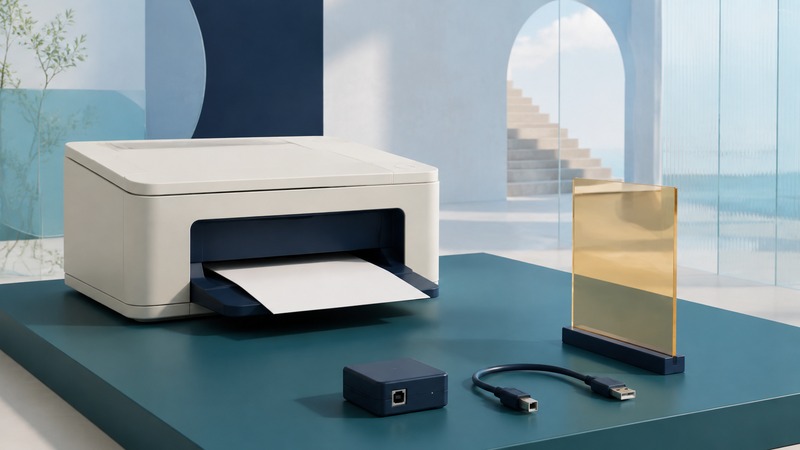
A Bluetooth printer adapter works only when the printer, adapter, sending device, and software support the same printing path. A matching USB plug or a printer appearing in a phone’s Bluetooth list is not enough. Before buying anything, identify how the print job will travel and what software will turn your document into a format the printer understands.
Bluetooth discovery is not necessarily Bluetooth printing
Some printers use Bluetooth Low Energy to help a setup app discover the nearby printer and configure its network connection. The documents then travel over the network. HP explicitly makes this distinction in its explanation of Bluetooth Low Energy printer setup: discovering the printer does not establish a Bluetooth printing connection.
Other printers support actual Bluetooth printing, either built in or through a specifically supported accessory. HP’s Bluetooth printing guide describes these model-dependent arrangements. Treat an adapter’s compatibility list as a requirement, not a suggestion. An accessory designed for selected older printers should not be assumed to work with a current phone or operating system.
On a small screen, scroll the table sideways to read all columns.
| Situation | Can you assume it will print? | Evidence to look for |
|---|---|---|
| USB-only printer plus a generic computer Bluetooth dongle | No. A radio dongle does not turn an arbitrary printer into a print server. | Printer documentation naming a supported adapter and sending-device workflow. |
| Printer appears during Bluetooth setup | No. Discovery may only help configure Wi-Fi. | The setup guide’s stated connection for sending documents. |
| Printer and dedicated adapter appear together in a compatibility list | Possibly, for the documented configuration. | Exact printer, adapter, operating system, driver or app, and supported functions. |
| Receipt or label printer advertises native Bluetooth printing | Use its documented software path. | Support for your phone platform, app, document or label format, and printer model. |
| AirPrint or another supported network-printing service | This is a network-printing question. | The exact printer’s service support and a reachable local-network connection. |
Check four parts of the complete connection
- The printer. Record the full model number and revision where relevant. Read the manual’s connectivity section, not just the connectors visible on the case.
- The adapter or server. Confirm that the manufacturer names the printer and explains how the accessory receives and forwards jobs. A general-purpose Bluetooth dongle normally depends on a computer’s software; the printer must explicitly support an attached accessory.
- The sending device. Check your actual phone or computer platform and version. An old Windows-only driver does not establish iPhone, Android, macOS, or Windows on Arm support.
- The printing software. Identify the supported app, system print service, or driver. Pairing can succeed while this final step is missing.
Microsoft describes the distinction between traditional drivers and its newer Mopria-based path in the Windows Ready Print overview. For an Arm-based Windows computer, verify the printer’s supported built-in printing path or appropriate driver rather than assuming an old installer will work; see Microsoft’s Windows on Arm device guidance.
Also list the functions you need. Printing, scanning, ink-status reporting, duplex control, and finishing options are separate checks. A print server that forwards a basic page may not preserve every feature of a multifunction printer. Ask for evidence for each required function rather than treating “compatible” as an all-or-nothing promise.
Choose another path when the Bluetooth evidence is missing
Use the printer’s native network connection
If the printer already supports Ethernet or Wi-Fi and your device supports its printing service, this is a candidate for direct local-network printing. AirPrint is a network technology: Apple documents compatible printers using Wi-Fi or a wired network connection. A computer’s USB connection alone does not make its printer available to an iPhone through AirPrint. Check Apple’s AirPrint instructions and the AirPrint printer directory for the exact model.
Consider documented Wi-Fi Direct
Some printers can create a direct Wi-Fi connection without a wireless router. This is separate from Bluetooth, and the supported procedure varies. Epson’s Wi-Fi Direct setup instructions for its specified models illustrate the method. Check what happens to your device’s other network connection while using it, and use your printer’s own instructions.
Keep USB, or share a working computer connection
A USB connection to a supported computer provides a useful baseline before adding wireless complexity. Windows can share a printer that works on a host PC, but that PC must remain on and reachable, and sharing must be configured appropriately on a trusted network. Follow Microsoft’s printer-sharing instructions. This does not automatically supply every phone with a compatible printing service.
A dedicated print server is another possibility only when its current support information covers your printer and clients. Include setup effort and missing features in the decision. If no supported path exists, keeping a reliable wired workflow may be more useful than buying successive unverified adapters.
Work through the evidence before buying
Invented example: a household has a working USB laser printer and wants to print from an iPhone. A seller offers a generic USB Bluetooth adapter, but neither the printer manual nor the adapter documentation describes that combination. The printer’s USB connection and the phone’s Bluetooth radio do not establish a printing path. The next checks are whether the exact printer has native AirPrint networking or whether a separately documented solution supports that printer and iPhone workflow. Until then, retain the working computer connection.
Download the printer connection checklist (plain text). Leave unknowns marked as unknown. A clear compatibility gap is useful information; it prevents a purchase based solely on a connector photograph.
Test the document path, not just discovery
First print a simple document through a known working connection, then repeat through the proposed path. Check page completeness, small text, punctuation, table lines, orientation, and any duplex or scanning features you require. If the printer’s own status page works but the document fails, focus next on the app, driver, queue, and connection rather than assuming the print engine has failed.
Open the printable connection-check page. It includes clearly invented line items and a verified total so you can check whether ordinary text and tables arrive intact. It is a basic document test, not a manufacturer’s alignment or color-calibration procedure.
Related resources
- Bluetooth pairing and app permissions
- Bluetooth technologies and practical uses
- Another compatibility guide: telephone headsets
- Explore all Bluetooth resources
Researched and updated September 5, 2026. Feature availability depends on the exact devices, software, and connection method.