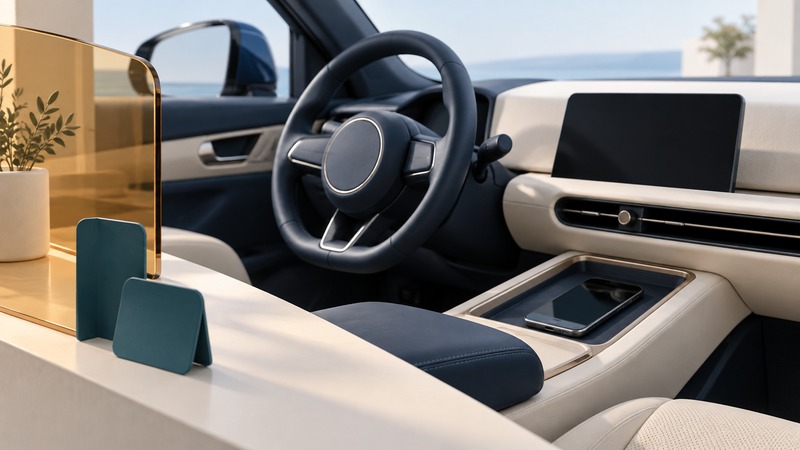
A car’s Bluetooth connection can carry calls, music, and access to phone information, depending on the vehicle and phone. Decide which functions you want before approving prompts. Complete setup and checks while safely parked, and make data removal part of returning a rental or transferring a vehicle.
Choose the functions you need
Identify the vehicle’s model year and infotainment system, plus your phone and software version. An aftermarket stereo may have different instructions from the factory unit. Use the matching manual for pairing and phone priority; the same car name can span several systems.
Bluetooth music, calls, contacts, and phone projection each have their own requirements. Google’s Android Bluetooth troubleshooting instructions distinguish media audio from phone audio and direct drivers to the car manual. CarPlay and Android Auto add another compatibility question; pairing alone establishes only the functions the equipment supports.
On a small screen, scroll the table sideways to read all columns.
| Function | Decide | Check while parked |
|---|---|---|
| Music | Whether the car needs media audio only | Play a familiar track through the intended source |
| Calls | Which phone should handle calls | Confirm the selected phone and microphone in a planned test |
| Contacts and call history | Whether you need access from the car display | Read the prompt and inspect which information appears |
| Messages and notifications | Whether any display or readout is wanted | Review the car and phone settings separately |
| Second driver | Which phone gets priority | Repeat with both phones present |
Pair deliberately and test with the car stationary
Open the car’s add-phone menu and the phone’s Bluetooth settings according to their manuals. Verify that displayed names and any confirmation codes refer to your equipment. Approve only the permissions required for your chosen functions. A music-only connection may have no reason to import your address book.
Make a planned test call with a willing contact while parked. Confirm the selected microphone, speaker volume, and the way the system indicates a call has ended. Then check the stored phone list and connection priority. With two household phones nearby, verify which one reconnects after an ordinary vehicle restart.
If the wrong phone takes over, correct the system’s documented preferred-phone setting or disconnect that phone while testing. Constantly deleting every saved device makes it harder to identify the cause. Keep a small note of the working phone priority and permissions.
Keep driving attention separate from connection convenience
NHTSA’s distracted-driving guidance includes talking on a phone and adjusting entertainment or navigation equipment among activities that take attention from driving. A hands-free interface still leaves a conversation competing for attention. NHTSA recommends driving phone-free.
Set your route and audio before moving, silence unnecessary notifications, and park in a safe location before handling a call or changing settings. Ask a passenger to manage appropriate phone tasks when available. Voice control can reduce some button presses; it is not a basis for treating a call as risk-free.
Driving laws depend on jurisdiction and can distinguish driver age, license type, handheld use, and other circumstances. Check the relevant government guidance for where you will drive. A Bluetooth connection supplies no general exemption from those rules.
Remove data before returning or transferring the car
The FTC’s connected-rental-car privacy advice explains that infotainment systems may retain contacts, call logs, messages, and navigation locations. Review access before connecting, then delete your information before return. If charging is your only purpose, consider a suitable power-only arrangement that avoids the infotainment data connection.
- While parked, open the car’s paired-device list and remove your phone using the documented menu.
- Inspect contacts, recent calls, messages, and navigation destinations. Use the system’s personal-data deletion procedure for information retained separately.
- Review any driver profile or app account you signed into. Follow its sign-out or vehicle-removal instructions.
- On your phone, forget the car if you will no longer use it.
- Reopen the relevant car menus to confirm your entries have gone. Ask the rental company for help when a setting is unclear.
Deleting a pairing on the phone changes the phone’s record. Check the car itself to establish what it still stores. For a shared vehicle, use the documented personal-profile cleanup rather than erasing someone else’s settings.
Keep a record and continue
Download the car Bluetooth setup and return checklist (plain text). Use the blank result fields to record your own equipment and observations.
- Fix car music and compare stereo upgrades
- Review Bluetooth security and saved connections
- Explore all Bluetooth guides
Researched and updated September 13, 2026. Car menus and data-removal procedures vary by model; follow the vehicle’s documentation.