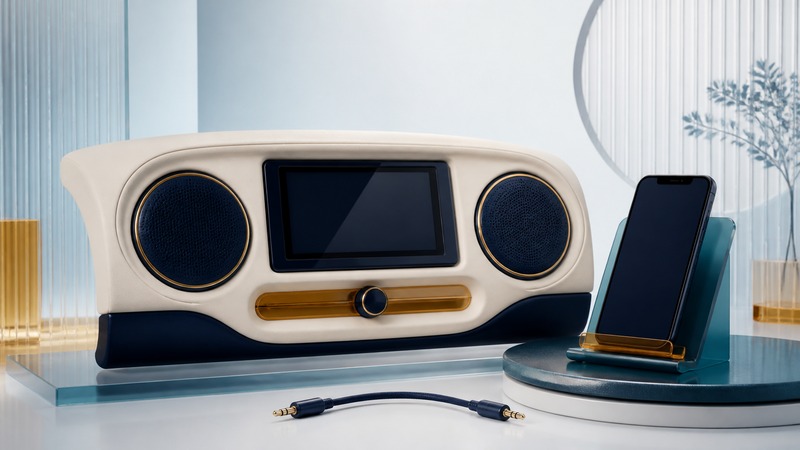
A car can be paired with a phone and still have no music, no call audio, or the wrong microphone in use. Treat these as separate functions. Identify the exact stereo, confirm what it supports, and test the connection while safely parked before changing equipment.
A phone connection can provide several different functions
On conventional Bluetooth systems, media streaming, hands-free calls, playback controls, and phone-book access use different profiles or permissions. Support for one does not guarantee support for the others. An older factory system may handle calls without accepting Bluetooth music. Google’s Android Bluetooth troubleshooting guide explicitly separates media and phone audio and advises checking the car manual.
Before troubleshooting, note the car’s model year, the exact factory or aftermarket stereo, your phone model, and software version. An aftermarket unit may have different capabilities from the original system. Look for the manual’s supported sources and its instructions for selecting Bluetooth audio, rather than assuming that pairing automatically changes the stereo’s input.
CarPlay and Android Auto are another compatibility question
Phone projection adds an interface for supported apps on a compatible car display. Ordinary Bluetooth pairing does not add CarPlay or Android Auto to a stereo that lacks it. Wired and wireless projection also have different requirements. Apple’s CarPlay setup guide covers supported wired and wireless connections, including Wi-Fi for wireless setup. Google’s Android Auto setup guide requires a compatible phone and car and describes the initial Bluetooth pairing for wireless use.
Troubleshoot one function at a time
On a small screen, scroll the table sideways to read all columns.
| Symptom | Check while parked | Useful next step |
|---|---|---|
| Calls work, music does not | Confirm the stereo supports Bluetooth media; select its Bluetooth audio source. | On Android, inspect the paired car’s Media audio setting where available. |
| Music works, calls do not | Check call-audio support and the phone’s selected call destination. | Disconnect another accessory that may be receiving calls; test a call again. |
| The phone says connected, but sound is elsewhere | Look at both the app’s output and the stereo input; check volumes separately. | Use one phone and one audio source during diagnosis. |
| Reconnection chooses the wrong phone | Inspect the stereo’s preferred-phone or connection-priority options. | Disconnect the other phone and test the intended sequence. |
| The other person hears echo or very little speech | Confirm which microphone is active and inspect the installed microphone position. | Use the stereo manufacturer’s microphone and gain instructions; test at normal volume. |
Google documents separate Android toggles for Media audio and Phone audio, where supported. It also recommends checking whether another paired device is taking the sound. These settings vary by phone; use the instructions for your device and the car’s capabilities rather than searching for a universal screen.
For an iPhone that will not connect, Apple recommends checking Bluetooth, restarting, updating the phone, and consulting the car or stereo manufacturer about firmware. Apple’s car-connection troubleshooting guide provides the sequence. If re-pairing becomes necessary, remove the old relationship from both ends as the manuals direct, then pair once and test before restoring additional phones.
Invented diagnostic example: the stereo plays a call correctly but never offers Bluetooth as a music source. Its manual lists hands-free calling only. Repeatedly pairing the phone will not add a missing media capability. The next decision is whether to use an existing wired input or install an appropriate upgrade.
Choose an upgrade by the input the car actually has
On a small screen, scroll the table sideways to read all columns.
| Path | Connection to the car | Important limitation to check |
|---|---|---|
| Bluetooth receiver for an auxiliary input | Receives phone audio and sends analog sound to the stereo’s AUX input. | Needs a working AUX input and power; call and microphone support are separate features. |
| Bluetooth-to-FM transmitter | Receives Bluetooth audio and sends it to an FM frequency tuned on the car radio. | Reception depends on local stations and interference; a charging port is not proof of audio support. |
| Compatible replacement head unit | Integrates supported Bluetooth functions into the stereo. | Check vehicle fit, wiring, steering-wheel controls, microphones, and retention of factory functions. |
| Existing wired audio or supported projection | Uses the car’s documented USB or analog connection. | A USB port may charge without supporting the desired audio or projection mode. |
A receiver and transmitter describe opposite sides of a connection; sellers may use “adapter” for either. Read the signal path in the manual. A device made to send a television’s audio to headphones is not necessarily a receiver for a car’s AUX input. As one documented example, the Scosche BTFM5 manual (PDF) separates its FM transmission, AUX output, and USB charging functions and explains interference from local broadcasts. Use the manual for the model you are considering; this example is not a current buying recommendation.
For a replacement stereo, ask the installer to identify any required interface modules and functions that could change, such as warning sounds, camera display, or steering-wheel buttons. Request confirmation for the exact vehicle and trim. Do not assume that an included cable preserves every factory feature.
Verify the finished setup before relying on it
- With the vehicle safely parked, play a familiar downloaded audio track and check the selected source.
- Place a test call to a willing helper; confirm both listening and microphone audio.
- End the call and check that music returns to the intended source.
- Turn the system off and on using the normal vehicle procedure, then check reconnection.
- If two people use the car, test which phone takes priority and how to switch deliberately.
- Review contact and message permissions, and learn how to clear personal data before lending, selling, or returning the vehicle.
Download the parked car-audio checklist (plain text). Hands-free controls do not eliminate distraction. Complete setup before driving and stop safely when a connection needs attention.
Related resources
- Bluetooth audio modes and troubleshooting
- Manage Bluetooth connections and permissions
- Bluetooth technologies and practical uses
- Explore all Bluetooth resources
Researched and updated September 5, 2026. Feature availability depends on the exact devices, software, and connection method.