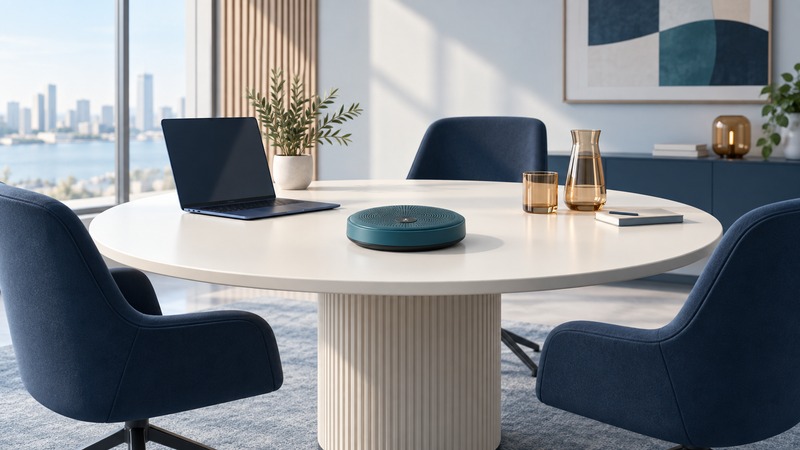
A conference speakerphone is useful when everyone at a small table can be heard clearly and the controls behave predictably. Start with the computer or phone and the meeting app, then verify the manufacturer’s supported connection. Hearing sound from a device is only one part of a successful meeting setup.
Check audio and software integration separately
List the exact speakerphone variant, computer or mobile device, operating system, meeting app, and connection method. Variants may differ in their certification or buttons. Check current manufacturer support for the complete combination before treating an old accessory as usable.
Early products such as TRENDnet’s ClearSky conference kit integrated Skype contacts and call handling. Microsoft retired Skype on May 5, 2025. A retired application’s contact display or call button integration needs its own replacement path. Basic microphone and speaker operation through another app must be tested separately; this guide makes no compatibility promise for the old kit.
On a small screen, scroll the table sideways to read all columns.
| Requirement | Evidence to seek | Test |
|---|---|---|
| Audio input and output | Supported USB or Bluetooth mode | Select the device in OS and app; hear both directions |
| Mute | Documented app/device synchronization | Verify the remote listener hears silence |
| Answer and end controls | Support for the exact meeting application | Place and finish a planned test call |
| Shared-room pickup | Manufacturer placement guidance | Have each seat read the same short passage |
| Reconnection | Documented connection priority | Repeat after restart or a mobile call interruption |
Use the connection the manufacturer supports
The Jabra Speak2 55 product documentation identifies its USB cable as the computer connection and Bluetooth as the smartphone/tablet connection. It also explains that remote call control depends on the conferencing software. Treat these as model-specific requirements.
A different speakerphone may support a manufacturer USB wireless adapter. In that case, include the adapter in the compatibility check. A general-purpose Bluetooth dongle should not be assumed to reproduce a vendor-supported audio and control path.
For the first test, select the same speakerphone for both microphone and speaker. Close unused meeting apps so they do not compete for the device. Record which app settings you changed.
Test the room from the remote listener’s position
Use a willing remote participant in a different room, or the app’s documented recording/test feature where available. Get permission before recording people. Place the speakerphone as its manual recommends and start at a comfortable moderate volume.
- Each seat reads the same short passage at normal speaking level. Ask which words are unclear and which seat is hardest to hear.
- Have the remote participant speak while someone in the room speaks briefly. Check whether overlapping speech becomes clipped.
- Test mute on the physical device and in the app. Confirm the actual result with the listener rather than trusting a light alone.
- Move papers and type briefly to judge whether normal table noise is distracting.
- Repeat after one placement or volume change and compare the listener’s notes.
If another laptop in the room joins the same meeting with its microphone and speakers active, it creates another acoustic path. Use the app’s supported arrangement for additional participants or disable that duplicate room audio. A participant merely muting one microphone may still leave an unwanted speaker path.
Follow the direction of the failure
Others hear an echo: check whether remote audio is being picked up again in your room; look for duplicate devices and excessive speaker volume. You hear an echo of yourself: ask the other location to inspect its audio paths. These are starting hypotheses, so confirm them with a controlled change.
Sound works but a button does nothing: check app integration and the exact device variant. Remote listeners hear the laptop instead: verify the app’s microphone selection. Words disappear from the far seat: compare placement and the manufacturer’s intended room coverage.
Finally, test the setup after sleep and after any supported phone/computer switching. Save the connection method, device names, app settings, and room placement that passed. A replacement app or firmware update is a reason to repeat the short check.
Keep a record and continue
Download the conference speakerphone acceptance checklist (plain text). Use the blank result fields to record your own equipment and observations.
- Choose a headset for individual calls
- Compare calling connection methods
- Understand microphone-related audio changes
- Explore all Bluetooth guides
Researched and updated September 13, 2026. The acceptance procedure is a practical evaluation framework; no speakerphone was physically tested for this article.