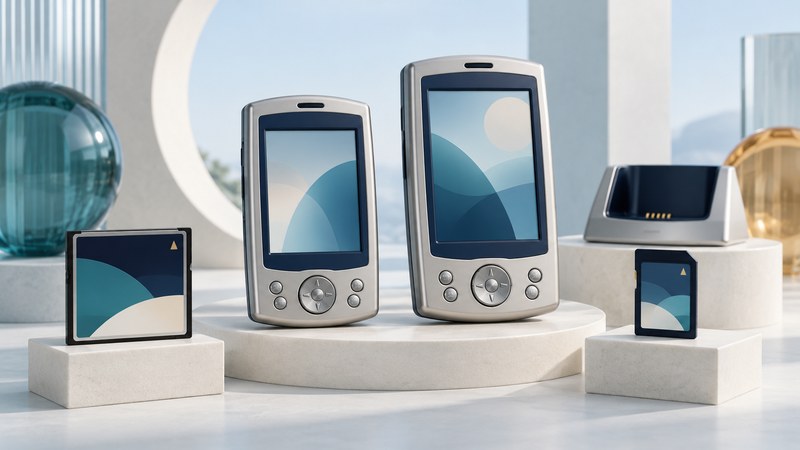
Identify both the Axim hardware and its installed operating system before choosing software, cards or a backup method. An X50-family name alone leaves important compatibility questions unanswered.
The Dell Axim X50 and X50v are Pocket PC handhelds from the Windows Mobile era. Their screens, expansion slots and desktop synchronization tools make them interesting preservation projects. A useful first session produces a device record and checked copies of valuable data, before any operating-system experiment.
Record hardware and software separately
Dell's X50 Owner's Manual (PDF, September 2004, printed pages 99–102) lists QVGA and VGA configurations, 64MB RAM, configuration-dependent flash memory, SDIO and CompactFlash Type II slots. The original manual covers Windows Mobile 2003 Second Edition.
Scroll the table horizontally to see every column. Keyboard users can focus the table region and use the arrow keys.
| Family member | Original display | Still record individually |
|---|---|---|
| X50 | 3.5-inch QVGA, 240 × 320 pixels | Processor configuration, installed OS, available storage and wireless hardware |
| X50v | 3.7-inch VGA, 480 × 640 pixels | Installed OS/build, application versions, card support and working desktop setup |
On the original system, Start → Settings → System → About provides system information. Photograph or transcribe the OS/build and device information, then list the applications whose data you need. Keep visible model labels and the original discs with that record. The separate Axim X30 historical profile concerns a different family.
A later system may be installed: Dell published a Windows Mobile 5.0 upgrade guide in 2005. Match advice to what the device actually runs. A label, launch date or downloaded installer cannot establish the current software state.
Locate each kind of data
The original manual distinguishes working memory from nonvolatile Built-in Storage. It documents checking the latter under Settings → System → Memory → Storage Card, selecting Built-in Storage. SD and CompactFlash cards add further locations. A hard reset erases device-memory data and installed programs; inspect the applicable instructions before using any reset.
Make a list by purpose: organizer records, documents, application databases, media, installers and license records. For each, write down the source location and the program that opens it. An apparently empty My Documents folder is a reason to inspect other locations and applications, not a conclusion that the device contains nothing useful.
Card compatibility also needs more than a matching shape. Record the exact card type and capacity, any peripheral driver, and the OS on which it worked. Preserve readable card contents before testing another card or accepting a format prompt. Use the device's manual and the accessory's documentation together.
Plan a preservation session
- Preserve the old desktop first. Copy existing synchronization folders, application data, backup files and installation media into a dated archive. Note the ActiveSync version and partnership name.
- Establish the connection. Check the documented cradle or cable, power arrangement, desktop software and transport. A charging indication alone does not demonstrate data communication.
- Review synchronization choices. Identify the target partnership and selected data types before allowing changes. Keep an empty desktop profile from becoming an accidental replacement source.
- Copy ordinary files to a separate destination. Record their original paths. Handle organizer and application data with the matching synchronization or export tool, documenting which records it covers.
- Check contents, not just completion messages. Open copied documents and inspect representative contacts, appointments and notes. Compare counts where available and record exceptions.
The manual describes ActiveSync and file-copy routes, but its desktop requirements belong to its period. Test the actual host setup before relying on it. This guide does not establish a universal Windows 11 connection method or validate an unknown driver download.
Keep migration separate from restoration
Dell's upgrade guide explicitly says that old ActiveSync Backup/Restore and Dell Data Backup images cannot migrate a Windows Mobile 2003 SE system into Windows Mobile 5.0. It calls for selected-data synchronization and manual file copies, including Built-in Storage, and warns that applications and peripherals may need different support.
For preservation, finish and verify the archive before considering an upgrade. Retain the original image/version details, lawful installation media and a clear reason for changing the OS. Keep a same-version restore plan distinct from a cross-version migration plan; name the intended destination system in your notes.
Download the Axim system and preservation record (plain text). It includes hardware, OS, storage, desktop and verification fields so a future owner can understand the working combination.
Explore handheld computing
Handheld computers: work devices, accessories and classic PDAs