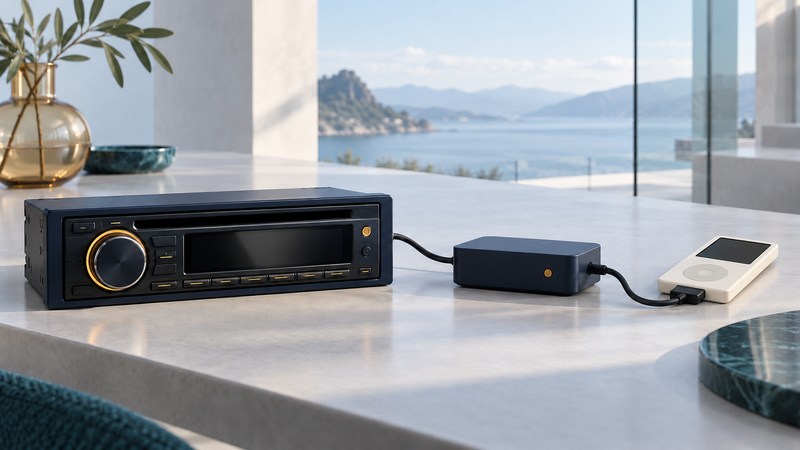
An Alpine KCA-420i setup depends on three identities: the receiver, the interface adapter and the iPod. Record all three before choosing cables or diagnosing a failure. Then test music playback, receiver control, text display and charging independently. A successful audio connection leaves the other functions to be checked.
Identify the complete system
The KCA-420i links a compatible Alpine Ai-NET receiver to an iPod dock connector. Alpine’s archived product page identifies it as discontinued and describes playlist, artist and album browsing. That background helps identify the accessory; the exact receiver manual determines the controls and connections for your installation.
Write down the receiver model and regional suffix, the adapter’s KCA-420i marking, the iPod generation and software version, and any additional changer, processor or adapter in the path. Take photographs of accessible labels without removing dashboard equipment. Use the mini or nano identification guide where appropriate.
The KCA-420i owner’s manual (PDF) gives different connection layouts for receivers, changers and processors and directs wiring/installation to experts. Give an installer your model record when the system is incomplete or its wiring is uncertain. This guide’s listening checks assume a correctly installed system.
Read the compatibility row and its footnotes
Consult the receiver documentation alongside Alpine Europe’s October 2021 iPod compatibility chart (PDF). Find the KCA-420i row and the precise iPod family/generation column, then read every attached symbol and footnote. The chart distinguishes supported, unsupported and qualified combinations; its starred entries include charging limitations for later devices.
Keep the chart’s region, date and firmware caveats with the result. A checkmark with a footnote is a conditional result. It does not establish that an arbitrary modern phone or connector adapter will work. Before obtaining another accessory, ask for confirmation of the complete receiver–interface–player combination and the function you need.
The KCA-420i manual also sets a historical iPod software floor at the April 28, 2004 update. Record the installed version before seeking a remedy. An old reference to an updater is not evidence that a particular download remains available or suitable today.
Make a simple test while parked
- Prepare the iPod first. Verify a familiar local track through headphones away from the car. Include a small playlist with short, plain titles so navigation is easy to recognize.
- Start from the installed system’s instructions. Connect as documented and select the receiver’s iPod/changer source. Begin at a low listening level.
- Test playback and control. Listen, pause and select the next track using the receiver. The adapter manual explains that the connected iPod’s own buttons are disabled; operate it from the head unit.
- Test browsing and text. Find the prepared playlist using the receiver’s procedure. Compare the selected track with the display and note any missing characters or truncation.
- Check charging separately. Observe the player’s indication under the documented ignition condition and compare it with the exact compatibility entry. Record an unconfirmed result if the display is unclear.
Finish menu setup before driving. Keep the device and cable in their installed positions without interfering with vehicle controls. The manual also warns against leaving the iPod in the vehicle for extended periods because of heat and humidity.
Use the symptom to narrow the next check
Scroll sideways to read the troubleshooting table.
| Observation | Next check | What to record |
|---|---|---|
| No sound | Confirm the same track plays through headphones and that the receiver is on the intended source. | Track, receiver source, volume and exact displayed message. |
| Audio works; browsing is confusing | Try the small prepared playlist using the receiver-specific search procedure. | The exact button sequence and where selection differs. |
| Text looks wrong | Compare a short plain-text title with the problematic title. | Which characters or fields differ; preserve the original tags. |
| Player runs down while connected | Recheck the chart’s charging footnotes and try the player’s documented standalone charger. | Whether the charging indication appears in either setup. |
| Connection is intermittent | Visually check accessible cable condition and have the installation inspected if needed. | When it happens and which functions fail together. |
Photograph an error before resetting or disconnecting anything, then use the matching troubleshooting entry in the adapter and receiver manuals. Avoid changing several settings or replacing multiple components at once: a single controlled comparison gives a clearer result.
If the receiver has another documented audio input, compare that route against your actual needs. A simple connection may play audio while leaving track selection on the player. The FM transmitter guide explains another signal path and its interference checks. Choose based on verified operation of the equipment you have.
Explore Music Players
Browse music-player guides and earlier reporting, or follow the offline-library setup guide. Primary documentation is linked alongside the guidance. Sources and model details checked October 7, 2026.