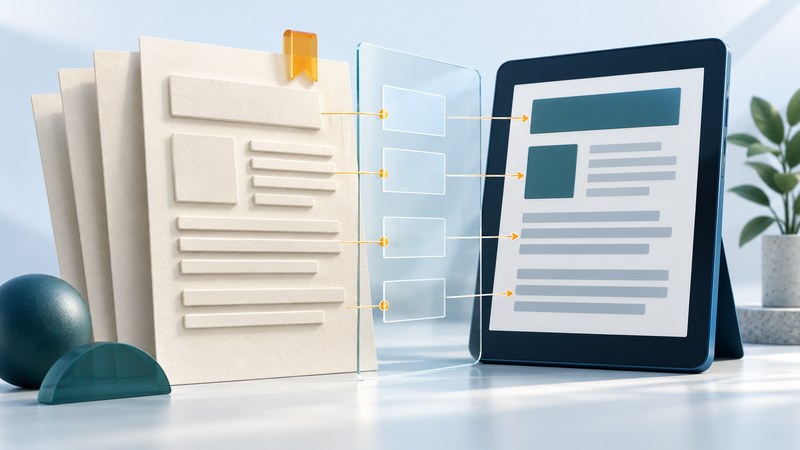
A useful PDF can be read, navigated and completed using the reader's preferred tools. Build accessibility into the source document, export it with structure, and inspect the PDF people will receive. Acrobat Pro can help identify and repair issues, but the final check includes reading order, meaning and interaction. Work on a copy and keep the editable source.
Start with the document people need
Choose HTML when the information is mainly meant to be read on the web and a fixed page layout adds little value. When a PDF is useful for distribution or printing, prepare its source with actual heading styles, lists, meaningful link text, table headers and image descriptions. Explain complex charts in nearby prose as well as identifying them.
Adobe's accessible-PDF authoring guidance recommends considering accessibility in the authoring application. Use an export option that retains tags and document structure, then inspect the result. Repeatedly repairing an exported PDF while leaving its source unchanged means the next export can reintroduce the same problems.
Set the document title and primary language. Keep tables as simple as the information permits; merged cells and visual layouts that interleave multiple topics require particular care. A clear visual design also makes the intended reading order easier to verify.
Run Acrobat checks and keep the results
In the current Acrobat Pro documentation, the relevant tools are under Prepare for accessibility, including Check for accessibility. Adobe also documents the older interface on the same help page. Follow the instructions for your installed experience, run the check on all relevant pages, and save its report. See Adobe's create-and-verify workflow.
Work through failures and items requiring manual checks. Record what you checked and how. A tagged file can still have an incorrect reading sequence, unhelpful descriptions or mislabeled table cells. Automatic results are useful diagnostics; they do not establish the meaning or usability of every element.
For scanned pages, recognize text and compare the recognized result against the image, especially names, dates, amounts and punctuation. Searchable text is a starting layer. The PDF still needs suitable structure and reading order. Retain a clean original so you can recover from an incorrect repair.
Inspect structure and reading order
- Navigate the headings and confirm that they describe the document in a sensible hierarchy. A large bold line should have the structural role intended for it.
- Read across page boundaries and around sidebars, captions and footnotes. Verify that the sequence preserves meaning.
- Check images and diagrams. Descriptions should communicate their purpose; decorative elements should not interrupt reading.
- Inspect tables with their row and column relationships. A reader moving to a value needs enough header context to interpret it.
- Check links for a useful name, correct destination and keyboard access. Inspect bookmarks when they help navigation through a longer document.
The Section508.gov PDF resources provide testing and remediation materials. Use a documented process when the file has a formal accessibility requirement. Complex tables, equations, forms or unusual layouts may need a specialist's review.
Repair the meaning, then test it
After a change, reopen the saved file and repeat the affected checks. Keep notes of the repaired element and the expected behavior. If a repair damages layout or removes information, return to the working copy and reassess the source rather than accumulating uncertain changes.
Test forms and the delivered file
For a fillable form, every field needs an understandable label and useful instructions. Follow the tab order, enter representative values, trigger an error, correct it, and save or submit using the supported method. Verify that required fields, choices and status changes can be understood without relying on color alone. A form that can be read but cannot be completed has an unfinished access problem.
Test the download from its public link, not only the local editing copy. Confirm the intended filename, document title and final version. Check text enlargement and the readers you expect people to use. Invite a proficient assistive-technology user to evaluate important documents, particularly forms used to obtain a service. Keep the source, final PDF and review record together so the next revision begins with a reliable baseline.