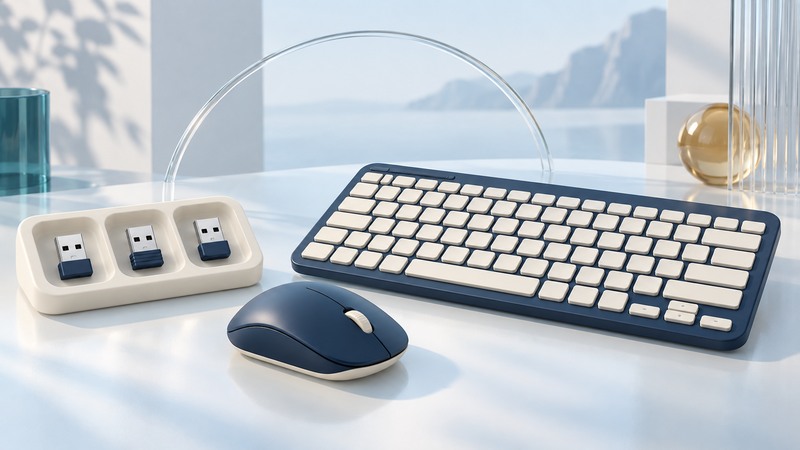
“Wireless USB” can describe several different technologies. To restore a connection, identify the exact device and receiver family first. A matching USB plug or shared radio band is insufficient evidence that two products can pair.
Identify which technology you have
On narrow screens, focus the table and use the arrow keys or swipe to see every column.
| Term or product | Meaning in context | What to look up |
|---|---|---|
| Cypress WirelessUSB LS | A named low-speed wireless component family | Chip, product and application documentation |
| Certified Wireless USB | The historical Wireless USB specification family | The host/device implementation and original manual |
| Proprietary USB receiver | A receiver connecting a supported peripheral family | Exact device-to-receiver pairing support |
| Bluetooth adapter or built-in radio | A Bluetooth connection path | Device Bluetooth capability and host pairing procedure |
Infineon's preserved WirelessUSB LS software-module documentation concerns the Cypress component family. USB-IF's defined class codes separately identify Wireless USB radio interfaces. Neither name establishes compatibility with an arbitrary keyboard dongle.
Start with the peripheral's underside label, receiver markings and model-specific support page. Photograph both pieces so the lookup survives a tiny or ambiguous printed identifier. Record whether the device offers a mode switch or more than one connection channel.
Match the receiver family
A concrete example is Logitech: its Bolt and Unifying compatibility explanation states that the two families are not cross-compatible. That is a product-family boundary even though both receivers attach through USB.
Before buying a replacement, check the support page for the exact peripheral model and the receiver's supported-device list. Confirm whether replacement pairing is supported, whether pairing software is required, and whether that software supports your host operating system. Save the evidence with the model number instead of relying on a marketplace description such as “universal receiver.”
Some peripherals offer both a receiver mode and Bluetooth. In that case, select the mode whose setup instructions you are following. Direct Bluetooth pairing and pairing to the supplied receiver are separate setup paths; completing one does not configure the other.
Restore the connection one layer at a time
- Power: check the device's battery or charge and power switch. Note its status indicator using the manual's interpretation.
- USB detection: connect the receiver to a known working host port. Check whether the operating system detects it; temporarily simplify a dock or hub chain.
- Mode: choose the intended receiver or Bluetooth channel on the peripheral.
- Pairing: follow the exact manufacturer's procedure for the supported device family. For Unifying, use Logitech's receiver setup instructions.
- Functional test: test basic input close to the receiver, then at the normal working position. Record when dropouts occur.
If the operating system cannot detect the receiver, repeating peripheral pairing is unlikely to resolve that earlier failure. If the receiver is detected but the peripheral never pairs, return to family compatibility and mode selection. When pairing succeeds but the link drops only at the desk, compare distance, placement and nearby equipment one change at a time.
Keep a working configuration record
Illustrative troubleshooting split
A mouse works through Bluetooth but fails with a spare receiver. The working Bluetooth test establishes that one input path functions. It leaves the spare receiver's family, pairing state and USB connection to investigate. Reinstalling every host driver would obscure those narrower questions.
Label a confirmed receiver with the associated device or family and retain the pairing instructions. For a shared workspace, note the host, port, connection mode and recovery procedure so the next person can reproduce the setup.
The cordless keyboard guide covers daily keyboard choices and troubleshooting. The mouse guide adds surface, tracking and ergonomic checks once the connection itself works.