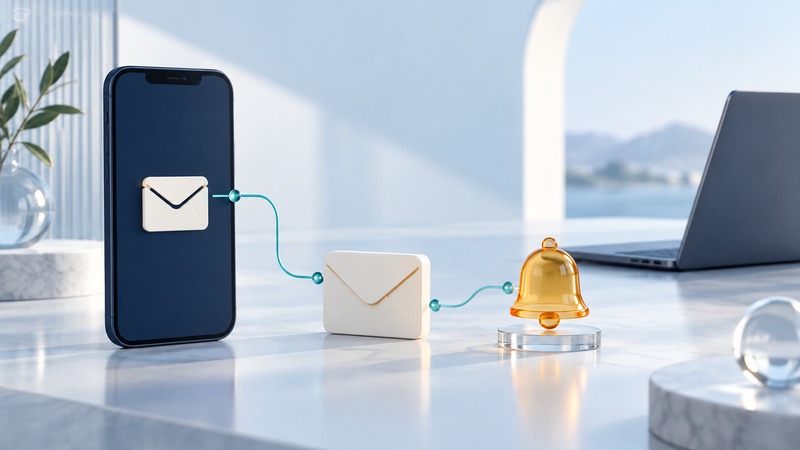
Mobile email works through several separate stages: account sign-in, message synchronization, sending, and notification. Identify the stage that failed before changing account settings. A message already visible in the inbox with no alert calls for a different check from a message stuck in the outbox.
Have the phone model, operating system, mail-app version, account provider and exact error available. For a work account, use the organization's approved app and support process. Preserve unsent drafts and locally stored mail before removing an account or clearing app storage.
Locate the failed stage
Start with the provider's official webmail site on a working connection. Sign in through your usual trusted address, inspect the mailbox and check the provider's service-status information. This comparison separates an account or service problem from a phone-app problem.
On a narrow screen, scroll the table sideways. Keyboard: focus the table and use the arrow keys.
| Observation | Useful next check | What the comparison establishes |
|---|---|---|
| Sign-in fails in webmail and the app | Provider account recovery or administrator support | Account access needs attention before app synchronization |
| New mail appears in webmail only | App account selection, refresh and sync settings | The server has mail that this app has not displayed |
| Mail appears after opening the app | Background sync or fetch configuration | Foreground access works; background behavior needs checking |
| Mail is present but no alert appears | App notifications, device permissions and Focus settings | Receipt and notification are separate stages |
| A message remains in the outbox | Connection, attachment and send error | Sending has not reached its expected completion state |
| A sent message is missing for the recipient | Recipient address, bounce message and recipient-side filtering | Investigate delivery after the sending stage |
Google's Gmail sync troubleshooting explicitly uses a computer-mailbox comparison for other providers' accounts. For Gmail on Android, it also covers manual refresh, app and device sync settings, and account or device storage. Apply the instructions for the affected account; changing another account's setting will leave the problem in place.
Separate refresh from background delivery
Open the affected inbox and use its refresh control once. Record whether a new message appears and the time it arrives. Then repeat with the app in the background. A difference between these tests is useful evidence for support.
In Apple's Mail app, Push and Fetch depend on the account provider. Apple's iPhone and iPad receiving-mail guide explains how to inspect Fetch New Data under Mail Accounts. Its Automatically setting has specific background conditions, including charging and Wi-Fi. Check the current instructions for your version instead of assuming every account continuously receives background updates.
Inspect notification settings separately after the message reaches the inbox. Check the selected account's alerts, the operating system's permission for the app, and any active notification-silencing mode. If the notification arrives silently, focus on alert presentation rather than repeatedly signing in.
Compare Wi-Fi with an approved cellular connection when appropriate. If several unrelated apps also fail, investigate the network connection first. Record whether a required mobile VPN is connected; follow workplace policy when testing it.
Resolve sending without losing the message
Open the outbox or the app's send-error details. Check the recipient address and whether a large or unsupported attachment is involved. Save a copy of important draft text and attachments somewhere approved before making changes.
Use a small, ordinary test message to a consenting colleague or another account you control. Give it a unique subject and record the send time. Confirm its presence in the sending account's Sent folder and ask the recipient to confirm receipt. A Sent entry is evidence about the sending account; recipient confirmation establishes the next stage of the test.
If a delivery-failure message returns, keep its diagnostic text for support. Avoid repeatedly resending an important order or instruction while its delivery state is uncertain. Contact the intended recipient through an established alternative when timing matters.
Verify the repair and keep useful evidence
After changing one setting, repeat the same incoming, outgoing and background tests. In a fictional example, webmail receives a message at 10:00, the phone displays it after a manual refresh at 10:03, and the alert remains silent. That result directs the next check toward notification settings; the mailbox has already synchronized.
Record the account type, app version, network, timestamps, error and change made. Keep passwords and private message contents out of a shared ticket. If account removal is the provider's next step, first confirm that needed mail exists on the server or in a separate backup. Apple notes that a device backup preserves mail settings rather than the email itself; Google warns that clearing Gmail storage can erase drafts and settings. Use these recovery steps only after the simpler comparisons and preservation checks.