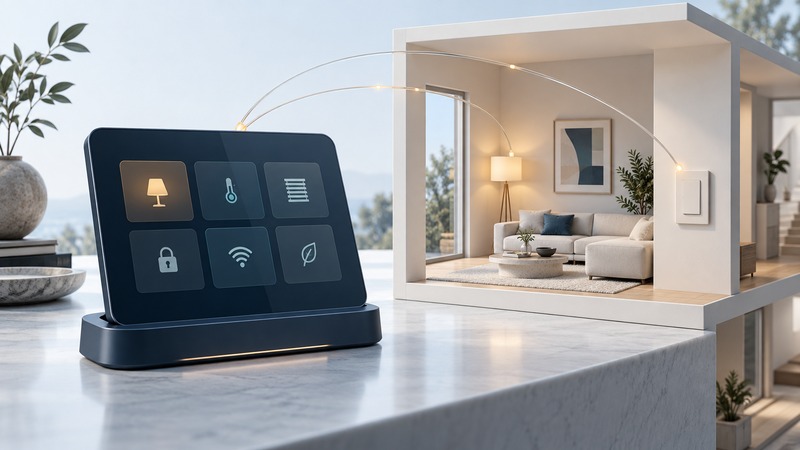
A Wi-Fi touch panel is the user interface to a control system. Its value comes from quickly completing a familiar action and showing the resulting state. Begin with the rooms and controls people need, then check the screen, network, controller and power arrangement as a complete path.
Use this guide when choosing a dedicated panel or adapting a supported tablet for ordinary home control. Have the controller documentation, a list of supported devices and the intended mounting or docking location. Keep essential physical controls accessible during setup and everyday use.
Follow one command all the way to the room
A tap may travel from an app through a Wi-Fi access point to a local controller, then through another network to a lamp. Some integrations also require an internet service. A screen connected to Wi-Fi has established only one part of that path. Record which component translates the command and which component reports the device state.
For example, the Crestron TST-1080 product documentation describes a wireless panel, supported control environments and a charging dock. Those are useful compatibility questions for any proposed installation. A visually similar panel may use a different control platform, app or power arrangement.
Draw a short dependency map: screen → access point → controller → device, adding a cloud service wherever the actual integration requires it. Next to each arrow, write the connection type and the person who can diagnose it. Yenra’s home-automation networking guide develops the wider network and automation questions.
Compare the complete supported setup
On a narrow screen, scroll the table horizontally. Keyboard users can focus the table region and use the arrow keys.
| Question | Dedicated panel | General-purpose tablet |
|---|---|---|
| Controller integration | Check exact platform, supported project format and firmware. | Check app/browser support for the tablet OS and required integrations. |
| Power and placement | Use the specified dock, wall accessory or power method. | Check manufacturer charging, ventilation and mounting guidance. |
| Wake and return to controls | Test wake delay and reconnection with the installed project. | Test lock screen, app focus, notifications and recovery after restart. |
| Maintenance | Identify who holds configuration files and can update the device. | Record account ownership, OS/app updates and administrative access. |
| Replacement | Keep the project, model and accessory requirements. | Check whether another supported tablet can restore the same controls. |
Choose a size and position people can read from the actual standing or seated location. Test glare, touch reach and the size of frequently used controls. A portable screen needs a dependable charging routine; a fixed screen needs an installation designed around the exact equipment. Evaluate continuous-use suitability with the manufacturer instead of assuming that every battery-powered tablet is suitable for permanent enclosed mounting.
Make the displayed state understandable
- Use familiar room and device names, and place the most frequent actions on the first view. A guest should be able to turn on the room light without understanding the underlying protocol.
- Separate a command being sent from confirmation that the device changed. Show an unavailable or stale state when fresh feedback is missing.
- Keep a clear route back from detailed controls. Avoid making basic actions depend on nested scenes whose effects the user cannot predict.
- For consequential actions, provide an appropriate confirmation or access control in the supported control system. Retain the product’s own protective behavior.
Apple Guided Access can temporarily restrict an iPad to one app and control available inputs. That helps shape an interaction session; ongoing installation management still needs an update plan, administrator access and tested restart behavior. Test the actual app in its intended mode.
Test interruptions before accepting the installation
On a narrow screen, scroll the table horizontally. Keyboard users can focus the table region and use the arrow keys.
| Condition | Action | Pass evidence |
|---|---|---|
| Ordinary use | Wake the panel and operate a lamp from the intended seat or doorway. | The action is easy to find and the observed lamp state agrees with the screen. |
| Physical change | Use the lamp’s supported manual control. | The screen updates or clearly indicates that feedback is unavailable. |
| Wireless interruption | During a planned test, interrupt and restore the panel’s network connection. | Offline state is visible; reconnection restores control without replaying stale commands. |
| Internet interruption | Test a harmless local function with internet access unavailable. | Observed behavior matches the documented dependency map. |
| Restart or power recovery | Restart the panel using its normal procedure. | It returns to the intended controls and has a documented administrator recovery route. |
Choose an acceptable wake/control delay with the people using the room and record it before testing. Repeat the same action a few times and include the longest observed delay; an unusually quick demonstration can hide inconsistent behavior.
Keep control and maintenance recoverable
Use supported authentication and encrypted connections, apply vendor updates and retain configuration backups where the administrator can retrieve them. The TST-1080 configuration manual documents authentication and connection settings for that model. A dedicated or restricted interface still requires appropriate configuration and maintenance.
Keep the controller model, panel firmware, app version, network requirements, configuration location and support contact in a private handover record. After a major software or network change, repeat the ordinary-use, offline and restart tests. The useful acceptance result is a room that remains understandable to its occupants.
Keep a working record
Download the wifi touch panel worksheet (editable text). Save a copy, fill in the fields for your situation and record exceptions as well as successful checks. The worksheet includes its purpose, source links and any example assumptions.