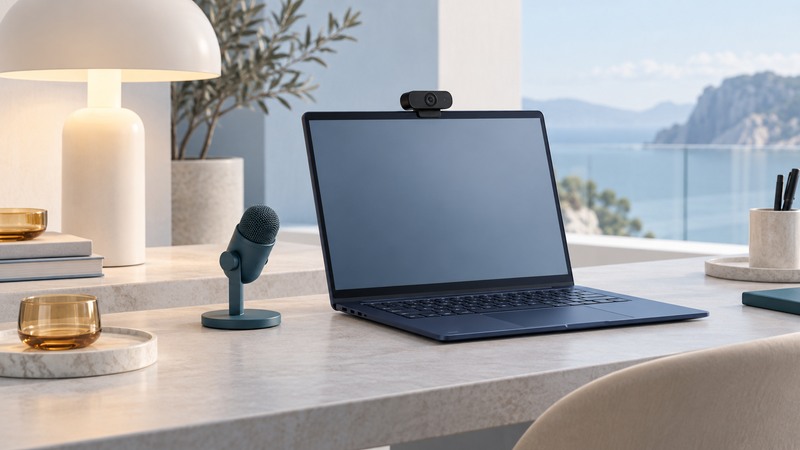
Improve a laptop video call by controlling light, camera position and sound before comparing camera specifications. A short repeatable test can show whether you need a different webcam or simply a better setup.
Use the laptop, room, connection and meeting application you expect to use. Keep one recorded sentence and a few simple movements consistent between tests. Record only yourself, and ask permission before recording anyone else.
Give the camera a useful view
Place the camera near eye level on a stable surface, with enough distance for a comfortable head-and-shoulders frame. Raise a laptop securely if needed and use a separate keyboard when that makes the working position easier. An external webcam's mount must fit the display without pressing on the panel or covering ventilation.
Start facing a window or a broad, diffused light placed slightly to one side. Compare that with a bright window behind you: the background can dominate the camera's exposure, leaving the face dark. Adjust the room first, then exposure controls if the webcam software provides them. Avoid pointing a harsh lamp straight into your eyes.
Clean the lens according to its instructions, check any privacy shutter, and inspect the real frame with background effects temporarily disabled. A wider field of view includes more room; it may make your face smaller at the same distance. Digital cropping trades some of the available image area for tighter framing.
Separate the local picture from the call
- Open the operating system's camera preview. Choose the intended camera and record ten seconds of normal speech and movement if recording is available.
- Look for focus hunting, underexposure, washed-out highlights and blur when you move a hand.
- Open the meeting application's own preview and confirm its selected camera. Match the framing, then test a call with a willing colleague or the application's test feature.
- Compare local capture with the received call. A good local recording and poor remote picture direct attention to application settings, processing load or the network path.
- Change one variable and repeat. Keep the improvement that remains visible under the conditions of a real meeting.
Resolution describes the image dimensions; frame rate describes how often frames are delivered. The highest advertised resolution and frame rate may use different camera modes. Confirm the specific combination, required connection and app support. A camera's advertised capture mode does not establish what the meeting service sends to another participant.
If the camera is missing, follow the access path
In Windows 11, check Settings → Privacy & security → Camera. Device access, application permissions and desktop-app access can affect different programs. A browser also has its own site permission. Microsoft's camera troubleshooting guide covers these checks and device detection.
On narrow screens, focus the table and use the arrow keys or swipe to see every column.
| Observation | Next check | Interpretation |
|---|---|---|
| Black picture in every app | Shutter, hardware camera switch, connection and camera selection | Resolve the common capture path first. |
| Preview works; browser call fails | Browser site permission and selected device | The working preview establishes basic camera operation. |
| External camera disconnects | A supported direct port and known-good data cable | Compare the dock/cable path with a simpler connection. |
| Picture freezes only in calls | Application effects, system load and connection quality | Compare with the local baseline under similar load. |
Close other camera applications before retesting. On an organization-managed laptop, an unavailable permission may require administrator action. Obtain firmware or software from the exact manufacturer's support page rather than a generic driver-download site.
Test sound independently
Select the intended microphone and speaker in the meeting app. Speak at your normal distance, then play back a recording. Listen for room echo, fan noise, clipping and the first words after silence. Move the microphone closer when practical and keep it clear of rubbing cables and keyboard vibration.
A headset often makes an echo test easier by separating playback from the room microphone. Noise suppression can help with some background sounds; compare it with speech, pauses and your actual voice before leaving it enabled. Camera and microphone permissions are separate, as Microsoft's privacy documentation explains.
Choose a new webcam when a repeatable shortcoming remains: unsuitable framing, unstable mounting, missing connection support or inadequate capture in your intended light. Check the exact supported OS and modes, a physical privacy control if desired, and the return policy. For room playback, see computer speaker setup; explore more hardware guides.