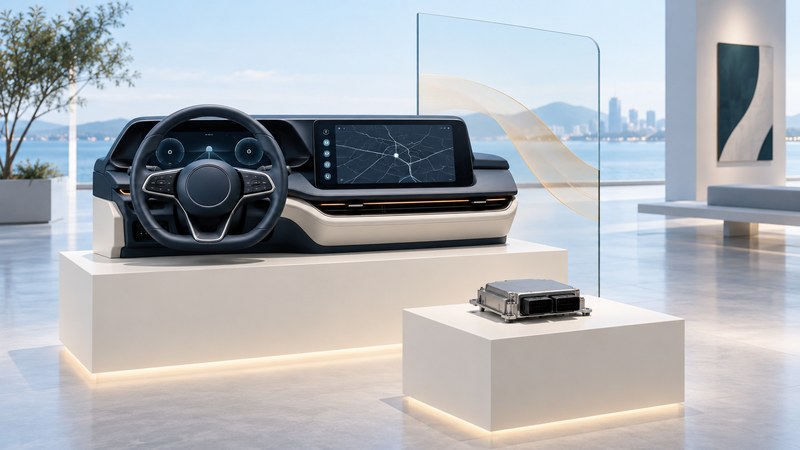
A dashboard can have several screens while sharing some of the computing behind them. To understand a digital cockpit, follow a function from its information source through software to the display and controls you use. The number of screens alone tells you little about that route.
Visteon provides a useful supplier case: its cockpit controllers can combine functions that previously occupied separate electronics modules. This guide explains the layers and gives you a way to ask precise questions about an actual vehicle's features, updates and service.
Follow the function, not just the screen
On a narrow screen, scroll the table sideways. Keyboard users can focus the table region and use the arrow keys.
| Layer | What it does | Evidence to request |
|---|---|---|
| Information source | Supplies the value or content: a vehicle signal, stored map, phone or online service. | Where does this particular function obtain its information? |
| Computing and software | Processes inputs and runs the relevant application or vehicle function. | Which module and software version handle it? |
| Presentation and controls | Shows information and accepts interaction through a display, button or other interface. | Which displays and controls support it in this model? |
| Connection and support | Connects relevant systems and supplies updates or service access. | What needs a phone, account, subscription or workshop procedure? |
A display is the visible output; a controller is computing hardware. An instrument cluster is the driver's vehicle-information display. Infotainment handles media and related interfaces. A head-up display presents selected information in the driver's forward view. These names describe roles, not proof that every function has its own computer.
What the Visteon example establishes
Visteon's cockpit domain-controller description covers consolidation of multiple displays and functions, with software separation and support for different operating systems. Its instrument-cluster overview describes receiving and presenting vehicle information. These are supplier platform capabilities; the automaker's implementation determines the equipment and behavior in a particular car.
The January 2023 Visteon–Qualcomm announcement discussed a SmartCore platform combining cluster and Android-based infotainment functions and targeted introduction in 2025. That dated target is not evidence that a named vehicle received it. Verify a production claim with model, market, build period and automaker documentation.
Shared hardware does not, by itself, establish that a media-app problem disables driving information. Equally, working audio does not establish that every cockpit function is healthy. Those conclusions require the vehicle's architecture and diagnostic evidence.
Build a vehicle-specific feature record
- Name one task. Write “show navigation directions in the instrument cluster,” rather than “navigation.” Record model year, market, trim and installed system.
- Identify the source. Check whether those directions come from built-in navigation, phone projection or another documented feature. Similar-looking maps may use different software.
- Record prerequisites. Note the documented connection, account, region, entitlement and software requirements. Treat an unverified requirement as a question.
- Separate update targets. Ask whether a proposed update changes map content, a phone app, infotainment software or another vehicle module. Obtain the applicable instructions before changing anything.
- Define success. Specify which screen should display what, under which supported conditions. Keep the handbook page or support reference beside the record.
Use the automaker's support route for vehicle-specific compatibility and service questions. A supplier's technology page explains its products, but cannot confirm your car's configuration from a dashboard photograph.
Worked example: music works, directions are missing
Fictional observation: after changing phones, a driver hears streamed music but no longer sees route prompts in the cluster. The useful record says which phone changed, whether the route appears on the center screen, which connection is in use, and whether the handbook promises cluster prompts for that navigation source.
First compare those conditions with the documented feature. If prompts are unsupported for that source, the result is a compatibility boundary. If all stated conditions are met, give support the exact symptom and versions. The observation alone cannot identify a failed screen or controller. Do not erase settings or disconnect components simply to make an incomplete record look like a diagnosis.
Keep the function map
Download the cockpit function map. Fill it in while parked and use one copy per feature. Include a dated photograph only when it can be taken safely and avoids private account information.
For the input layer, see touch sensing in vehicle controls. For a specific early instrument design, see the DB9 instrument guide. The Alpine audio guide addresses a different question: planning an aftermarket audio system.
Explore Autos: vehicle guides, technology and design · Cars: buying, maintenance and ownership