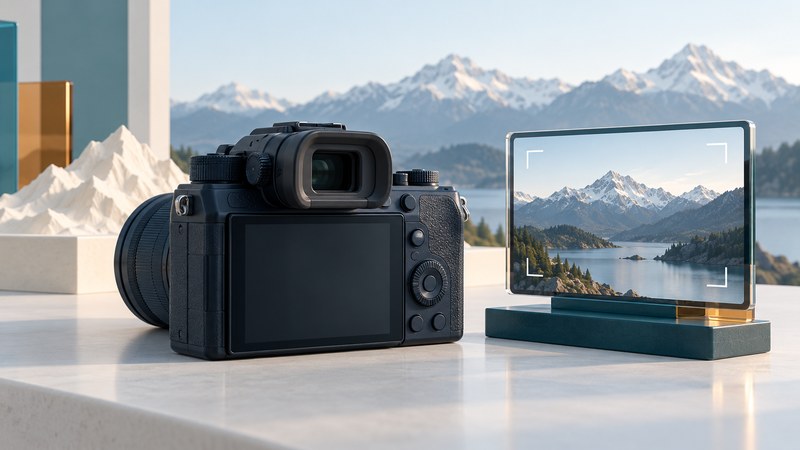
An electronic viewfinder, or EVF, shows a live electronic image inside an eyepiece. Its most useful features are a clear view, comfortable framing and feedback you understand. Set it for your eyesight first, then check how its preview relates to the photograph.
An optical finder carries an optical view of the scene. In a DSLR that view passes through the taking lens and a mirror system; some compact-camera optical finders use a separate window. An EVF uses the sensor's electronic feed, so it can also display playback, focus aids and shooting information.
Make the display sharp for your eye
Bring up the camera's menu or shooting information and adjust the diopter control until the lettering or focus markings look sharp. Keep your usual shooting glasses on if that is how you work. Use a static display so changing subject focus does not confuse the adjustment.
Canon's EOS R50 viewfinder instructions provide a model-specific example of the adjustment. Find the equivalent control in your own manual. The diopter changes how you see the display; the lens focus determines which subject distance is sharp in the photograph.
If the information is sharp but the subject is blurred, check focus and camera movement. If both look blurred, recheck the eyepiece adjustment and cleanliness. With glasses, examine all four corners: an eyepiece that requires awkward head movement can be uncomfortable even when its specifications look impressive.
Know what brightness is showing you
Exposure simulation tries to make the preview resemble the recorded exposure. A viewing-assistance mode can instead brighten a dark scene to make composition easier. Screen brightness is another control: changing it changes your view, without directly changing the exposure.
For a concrete example, the EOS R6 Mark II Display Simulation manual distinguishes exposure preview, exposure plus depth-of-field preview, and a standard-brightness display. It also identifies flash and lens limitations. Its separate optical-viewfinder simulation setting favors a natural-looking view and disables normal display simulation. Those options belong to that model; other cameras use different names and combinations.
Use playback and the histogram or highlight warning alongside the preview when exposure matters. These displays are interpretations of image data and camera processing; a pleasant-looking EVF image alone does not establish how much highlight detail remains in a RAW file.
Compare the viewfinder in use
On a small screen, scroll the table sideways. Keyboard users can focus the table and use the arrow keys.
| Quality | Practical check | Why it matters |
|---|---|---|
| Size and eye position | Frame a scene with your usual glasses and examine the corners. | Magnification and eye relief affect comfort and whether the whole frame is visible. |
| Detail | Magnify a stationary subject in manual focus, where supported. | Resolution helps with inspection, but optics and display processing also matter. |
| Motion and delay | Follow a person walking across the frame in normal and dim light. | The live feed may behave differently with light level and performance settings. |
| Burst behavior | Follow a moving subject while using the intended shutter and burst mode. | Blackouts or displayed prior frames can affect tracking. |
| Power and heat | Check the manual for the selected high-performance display mode. | A faster display can change power consumption and available operating conditions. |
Display dots, image pixels, refresh rate and capture burst rate describe different things. A panel specification may count individual color subpixels as dots. A refresh-rate figure says how often the panel updates; the complete delay also includes sensor readout and processing. Test the actual shooting mode you expect to use.
Build a simple viewing routine
- Set the diopter and select a comfortable information layout.
- Check whether exposure simulation or viewing assistance is active.
- Use magnification for a stationary fine-focus check when the camera supports it. Focus peaking can guide attention, then a recorded frame confirms the result.
- For action, test tracking during an actual burst, not only while half-pressing the shutter.
- Review a captured image before committing to a long sequence or changing lighting.
When the rear screen or EVF switches unexpectedly, check the eye sensor, display-selection setting and any object near the eyecup. Record which setting solved the problem so the setup remains repeatable.