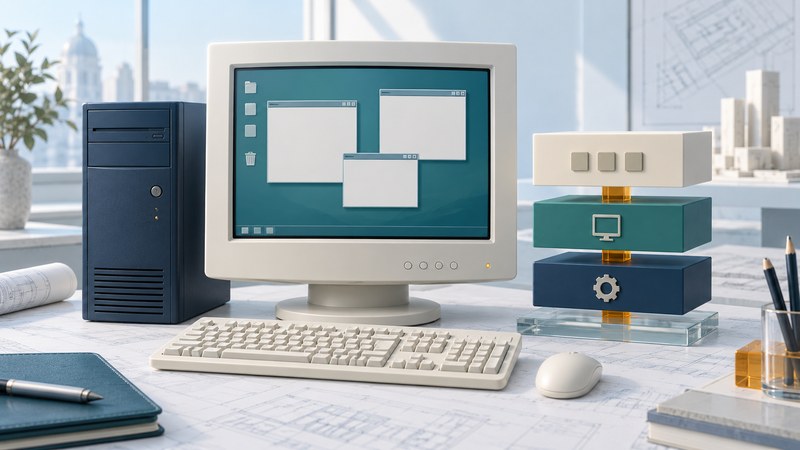
Sun Java Desktop System brought together a desktop environment and everyday applications under an enterprise software offering. The Java name can obscure that broader purpose. A useful way to understand the product is to separate its operating-system foundation, desktop interface, productivity applications and Java runtime, then ask which parts a particular release supplied.
Map the components to their jobs
Sun’s September 2003 launch positioned Java Desktop System as an alternative enterprise desktop, combining office, browser and communication software with Java technology. The historical business pitch emphasized acquisition cost and integration. Those claims should be read as launch positioning; a migration decision needs the actual workload and support requirements.
- Operating-system foundation: the relevant Linux or Solaris environment provides processes, files, networking and hardware support.
- Desktop environment: GNOME provides the graphical workspace and related user interaction.
- Applications: office, browser, email and other tools perform the user’s daily work.
- Java runtime: compatible Java applications use their required runtime alongside the other desktop software.
Sun’s Release 3 on Linux release notes (August 2005, PDF) list GNOME and productivity components, StarOffice 8, Mozilla 1.7 and an alternative Firefox 1.0.x browser. These are historical Release 3 details. They should not be substituted into a description of every earlier or Solaris-based edition.
Read the release and platform together
On narrow screens, scroll the table horizontally. Keyboard users can focus it and use the arrow keys.
| Period or edition | What to retain | Source boundary |
|---|---|---|
| September 2003 launch | An enterprise desktop offering built around a familiar application set. | Launch claims explain positioning; they do not establish later component versions. |
| Release 3 on Linux, 2005 | Linux edition with its own application versions, known issues and upgrade notes. | Use the Linux Release 3 release notes for specific included components. |
| Release 3 platform documentation | Linux on Intel-compatible hardware and Solaris 10 on SPARC/x86 are documented. | The administration guide identifies where platform-specific instructions apply. |
The Release 3 administration guide’s supported-systems and documentation lists make the platform distinction explicit. It associates StarOffice 8 documentation with the Linux edition and StarOffice 7 documentation with the Solaris 10 edition. A product name alone is too coarse for recreating an installation or comparing compatibility.
When identifying an old machine or disk set, record the product release, operating system, architecture and application versions together. Keep the corresponding manuals with that record. This is more useful than inferring a complete environment from a screenshot or marketing name.
Separate Java Desktop System, Swing and Sun Ray
Java Desktop System names the broader desktop offering. Swing supplies Java application UI components; the Swing guide demonstrates a small program using them. A GNOME desktop can host a Java application, just as it hosts other applications, without every desktop component being implemented in Swing.
Sun Ray concerns access to server-hosted sessions. The Sun Ray Software administration overview explains regular sessions and kiosk sessions, including a Java Desktop System 3 session type. This later manual documents a relationship between products. It does not turn Sun Ray hardware or smart-card session handling into a prerequisite for every Java Desktop System installation.
For historical comparison, ask two separate questions: what software makes up the user’s desktop, and where does that desktop execute? A local workstation and a remotely delivered session can present similar applications while imposing different network, peripheral and operational requirements.
Assess a desktop replacement by completed work
Fictional pilot: a purchasing team’s daily workflow
A team receives a spreadsheet, adjusts quantities, saves it for a colleague, signs into an internal portal and prints a purchase order. Opening the spreadsheet is only the first checkpoint. Formulas, formatting, macros, shared-file access, login and printing all affect whether the replacement supports the job.
- Choose representative documents with expected outputs. Compare calculated values and the saved file when reopened by the receiving colleague.
- Check fonts, layout, page breaks and printing against the required document. Record any manual correction and its time cost.
- Exercise identity, shared storage and the internal portal with a normal user account. Include a denied-access case and a session expiry.
- Test the required peripheral and accessibility workflow on the intended hardware or remote-session arrangement.
- Record update/support responsibilities, training needs and a rollback route. Expand the pilot only after the required workflows pass.
A license price captures one cost component. Training, integration work, support, downtime and hardware changes belong in the same decision. Use the historical Sun desktop as a case study in evaluating the whole working environment. Archived software and manuals serve historical investigation; choose a currently supported environment for an operational deployment.
The strongest conclusion from a pilot is specific: these users completed these tasks with these versions and documented exceptions. That is a more durable basis for a decision than a blanket promise of compatibility or savings.