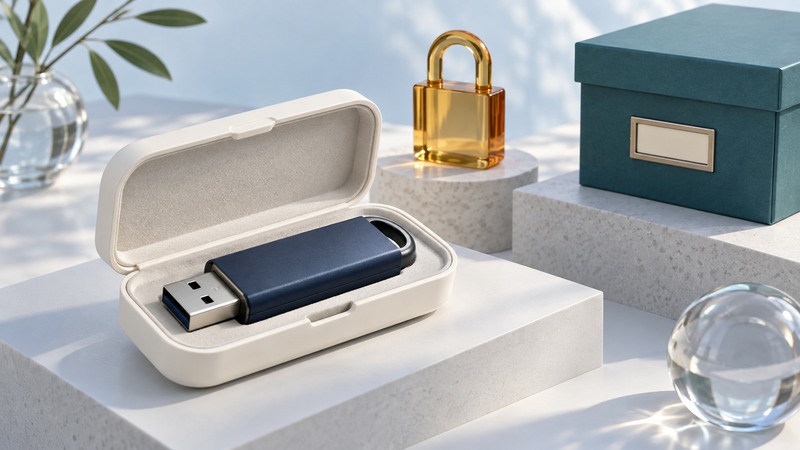
An encrypted USB drive is useful only when you can unlock it on the computer where you need the files—and recover your work if the drive fails or disappears. Choose the access method, test every intended host, and keep another recoverable copy before trusting it with the only version of a document.
Choose the unlocking method first
Start with a list of actual computers, operating systems and permissions. A drive that works on your own Windows laptop may require software that you cannot install on a borrowed computer. A keypad drive can avoid a host-side unlocking application, but the host still needs to accept USB storage and read the drive's file system.
On narrow screens, focus the table and use the arrow keys or swipe to see every column.
| Approach | Check on each host | Recovery question |
|---|---|---|
| Operating-system encryption | Supported OS, edition, unlocking method and organizational policy | Where is the recovery information, and who can retrieve it? |
| Hardware drive with keypad | USB storage support, connector clearance, power and readable file system | Does this model have an administrator PIN, lockout or destructive reset? |
| Encrypted container or vendor application | Exact application version, installation rights and support lifecycle | Can a second supported computer open a backup of the container? |
Microsoft's BitLocker FAQ describes BitLocker To Go for removable storage. As a different design, Kingston's KP200 series uses an onboard keypad and supports hosts that accept USB mass storage. These are examples of two approaches, not a claim that every encrypted drive works everywhere.
Understand what encryption protects
Encryption helps protect stored data when someone has the locked drive but lacks the unlocking secret. Once you unlock it, applications on that computer can access the available files. Use a trusted, maintained host; encryption does not make an unknown computer a safe place to open private material.
Files copied elsewhere, temporary application files and exported attachments need their own protection. Decide whether your workflow requires editing directly on the drive or copying to managed storage. Follow your organization's rules for sensitive information rather than assuming a product's security label authorizes its use.
Unlocking and file-system compatibility are separate checks. See the USB flash-drive guide for connector and file-size considerations. Do not reformat an existing drive to solve a compatibility problem until its contents have been backed up and verified.
Run a harmless-file acceptance test
- Read the exact model's setup, lockout and reset instructions. Configure recovery or administrator access where supported; keep secrets separate from the drive.
- Copy a small folder containing disposable examples of the file types you use. Open them in their real applications and save a change.
- Eject using the host's normal procedure. Disconnect, reconnect and confirm that access is locked as the manual describes.
- Unlock on each intended supported host. Check reading, writing and reconnection after sleep—not merely whether a drive icon appears.
- Restore the test folder from your separate backup to another location and open it. Record the tested host, OS, drive model and date without recording the PIN.
For example, if a presentation opens on your laptop but the venue computer cannot unlock the drive, the connection is not the whole problem. Arrange an approved supported host or another authorized delivery method before the event; do not remove encryption from private material just to make it convenient.
Plan for loss, forgotten credentials and retirement
A spare copy on the same USB drive cannot help when that drive is lost. Keep a verified backup in a separate location with appropriate access controls, and make sure its recovery credentials are available to the responsible person.
If unlocking fails, stop guessing and consult the manual. Some hardware drives impose different user and administrator lockout rules, and repeated failures or a reset can erase data. A recovery key helps only for a system that supports it; it does not repair failed hardware or recreate missing files.
Before retirement, verify the backup and use the manufacturer's documented reset or sanitization method for that model. Update the inventory and remove obsolete access permissions. Repeat the compatibility test after changing the host OS, encryption software or organizational storage policy.