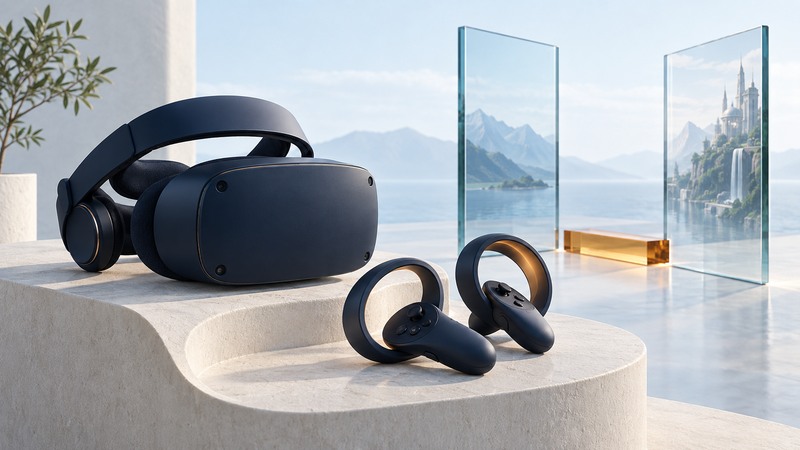
For an original Samsung HMD Odyssey, the first check is now the Windows software path. The headset can be physically intact while the required platform is absent from the PC. Check your exact Windows edition and version before buying an adapter, reinstalling software, or purchasing a used headset.
The support situation as of September 19, 2026
Microsoft says Windows Mixed Reality was removed in Windows 11 version 24H2, including Mixed Reality Portal and the WMR components for SteamVR. Its documented continuation window for existing WMR devices on Windows 11 23H2 runs through November 2026, after which WMR updates and support end.
The operating system has its own lifecycle. Windows 11 23H2 Home and Pro support ended November 11, 2025. The later WMR date therefore does not make a Home/Pro 23H2 installation a supported general-purpose PC today. Check Microsoft's lifecycle record for your actual edition.
Identify the headset and record the PC
This guide concerns the original Odyssey. Samsung's original HMD Odyssey product record identifies the XE800ZAA family. Read the label on your own unit; later Odyssey products and Samsung monitors share the name.
- Record the hardware. Write down the full headset model, controller presence, cable condition and the PC's graphics hardware.
- Read Windows information. Open Settings → System → About for the edition; use Start search for
winverto display the installed version and build. - Record the software path. Note whether Mixed Reality Portal, SteamVR and the relevant WMR integration are already installed, and whether the headset launches.
- Check lifecycle dates. Compare the Windows edition/version with Microsoft's current support record and the WMR removal notice.
A seller's video of a headset working answers only part of this checklist. Ask which operating system and software made that demonstration possible.
Choose a path from the configuration you actually have
On small screens, swipe the table sideways. With a keyboard, focus the table and use the arrow keys.
| Situation | Meaning | Useful next step |
|---|---|---|
| Windows 11 24H2 or later | The built-in WMR platform has been removed. | Plan around currently supported VR hardware/software. Installing SteamVR alone does not restore WMR. |
| Existing 23H2 installation still works | Operation depends on a legacy stack with a short remaining WMR window. | Check the Windows edition lifecycle and plan migration; keep normal PC security updates as a requirement. |
| Fresh installation or used-headset purchase | Old setup instructions do not establish that all dependencies remain obtainable and supported. | Verify the complete install path before committing money or time. |
| Community driver proposed | A separate project has its own device coverage and maintenance. | Read its exact model support, limitations, release history and recovery instructions before evaluating it. |
A third-party driver should be assessed on its own evidence. A demonstration on one headset model or Windows build provides limited evidence for your machine. This guide does not verify a particular replacement driver.
Separate software removal from a hardware fault
If the headset stopped working immediately after a major Windows upgrade, record the before-and-after versions first. Repeated USB swaps cannot replace a removed software platform. If you have an already working, appropriately maintained installation and experience an intermittent fault, keep the test narrow: record the error, inspect connections without forcing them, try the documented port arrangement, and compare the result before changing another variable.
Microsoft's archived setup guide explains the historical components and requirements. Use it to understand an existing system; its presence online does not establish a current new-installation path.
For tracking problems, note whether the issue affects the view, one controller, or both. Record room conditions, battery state and the exact reproduction steps for support or project maintainers. Avoid treating every tracking symptom as a broken display cable.
Make a replacement decision around the games
List the VR games and applications you intend to keep, how they were purchased, and whether they require a specific runtime or controller arrangement. For each prospective replacement, verify those exact titles against the headset maker's and software publisher's current requirements.
Keep account access, game-save backups where supported, and personal project files before changing a PC. Budget for the complete replacement arrangement: headset, controllers, required tracking equipment, compatible ports and computing hardware. A newer headset's connector shape alone cannot establish compatibility.
The original Odyssey is also useful historical context for inside-out PC VR. Its immersive display replaces the user's view with a virtual scene; the “Mixed Reality” platform name should be read in that product context, rather than as a promise of see-through augmented reality.