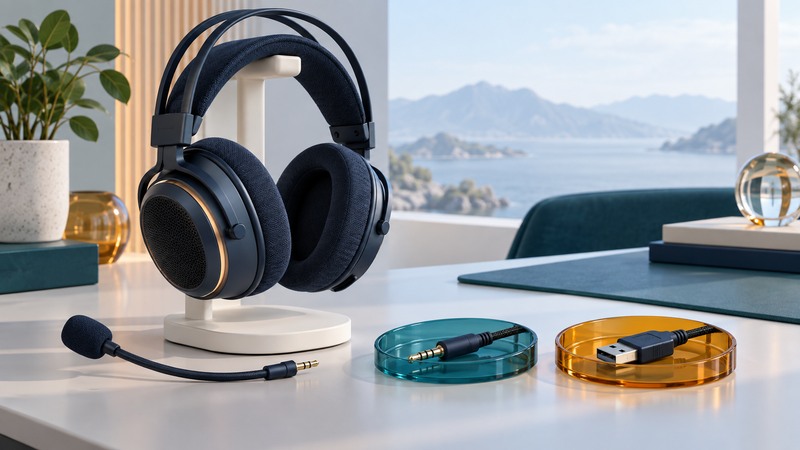
Start by looking at the plug. The Electra V2 name covers an analog 3.5 mm headset and a USB version; the same troubleshooting steps do not apply to both. Establish clean stereo playback and a working microphone before adding optional surround processing.
Identify the connector and its audio path
Razer identifies the analog model as RZ04-02210 and the USB model as RZ04-02220. Check your unit's label and connector against the matching support record.
On small screens, swipe the table sideways. With a keyboard, focus the table and use the arrow keys.
| Version | Connection | Device you select |
|---|---|---|
| Electra V2 analog | 3.5 mm combined headphone/microphone plug. | The computer, controller or adapter's audio interface; the headset may not appear by name. |
| Electra V2 USB | USB connection to a supported host. | The USB headset's playback and recording endpoints. |
A headphone-only socket carries output but offers no microphone input. For a PC with separate headphone and microphone sockets, use a compatible headset splitter. Razer's analog FAQ identifies the included splitter's green playback and pink microphone branches. A cable that merely duplicates headphone output serves a different purpose.
Check playback and voice separately
- Seat the connectors. Attach the boom microphone fully and check the headset's mute and volume controls.
- Select output. Choose the correct playback device in the operating system and in the game or chat application. Begin at a low listening level.
- Test stereo. Play a familiar recording and, where available, use the system's left/right speaker test. Confirm both sides.
- Select input. Choose the matching recording device and permit microphone access for the intended application.
- Record a sentence. Play the file back before testing an online call. Move the boom near the side of the mouth while keeping it out of the direct breath stream.
If playback works but the recording meter stays still, investigate the microphone branch: mute, boom connection, socket type and selected input. That evidence points away from the playback volume setting.
Use the fault to narrow the test
- Analog headset absent from the device list: look for the sound card or adapter that owns the jack. Test its input meter.
- USB headset disappears intermittently: test a direct computer USB port and inspect the cable. Record whether another port changes the result.
- One side is quiet: check balance, connector seating and a second known-good audio source before applying equalization.
- Friends hear themselves: use headphones, reduce unnecessary monitoring paths, and run one voice application for the test.
- Voice works in a recorder but not a game: inspect the game's input selection, push-to-talk binding and privacy permissions.
For recorded gameplay, capture the microphone once. The Seiren X guide's OBS routing explanation also applies to avoiding duplicate capture from a headset.
Treat surround software as a separate layer
The Electra V2 USB manual describes basic stereo operation and an optional Synapse path for virtual surround. This is a legacy product workflow. Check the exact device and operating-system support before installing software or buying a license.
As of this guide's September 19, 2026 update, Razer's Synapse 2.0 notice says existing PCs can continue operating it, while cloud-related features ended October 28, 2025. Preserve any useful local settings using Razer's documented export process. An old cloud-sync claim is insufficient evidence for a new installation.
Once stereo is reliable, compare one supported spatial-processing path at a time. Avoid stacking a game's headphone virtualization with a second surround effect unless the software explicitly calls for that combination. Use a repeatable in-game scene and judge direction cues and clarity at comparable listening levels.
If clean stereo and voice meet your needs, optional processing can remain off. If the missing capability is essential, compare currently supported alternatives by their complete software requirements as well as the headset hardware.