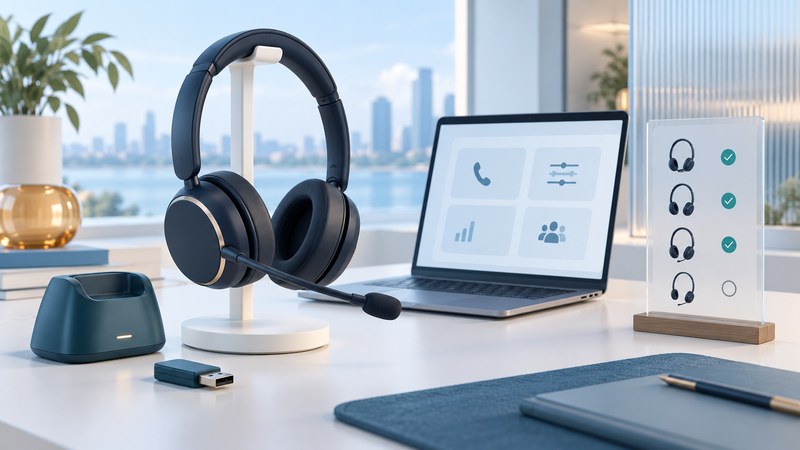
A Plantronics or Poly headset is part of a calling setup that can also include a base, USB adapter, operating system and softphone. Identify that complete combination before installing software or judging compatibility. Then test sound, microphone and call controls separately.
This guide helps an owner or support technician document an existing headset and find the relevant official support path. It is a verification routine, not a claim that every legacy Plantronics device works with current software.
Identify all the pieces
Read the labels on the headset, charging or desk-phone base and USB adapter. Record the exact model and variant, connection type, computer operating system and calling application version. Keep serial numbers in your private support record. A family name alone can conceal differences between a USB headset, a Bluetooth headset paired directly to a computer and a headset using its supplied radio adapter.
Start with the manufacturer's model documentation, then follow the supported connection method. For desk-phone bases, verify the phone model and any required interface cable or electronic hook-switch accessory. For computer calling, select the intended microphone and speaker inside the softphone as well as in the operating system. A working music playback test establishes only part of the path.
Use the current support names
As checked in October 2026, the official app is HP Poly Studio Desktop, formerly Poly Lens Desktop. HP describes configuration, firmware management and softphone call-control functions. Poly Lens Cloud remains a separate management service. These names help you locate current documentation when an older manual still says Plantronics Hub or Poly Lens.
Before installing, check the supported devices and softphone combinations and the release notes. Match the operating system, processor platform, device and application. Support categories distinguish fully tested support from compatibility and limited support. A device appearing in an app inventory is a starting point for checking its supported functions.
On an employer-managed computer, use the approved deployment route. Save the existing firmware and app versions, read upgrade prerequisites and known issues, and schedule changes when calls can pause. Obtain installers through official support links. If a legacy model lacks a supported update path, ask support about its remaining functions and replacement options rather than cycling through unrelated old installers.
Swipe horizontally, or focus the table and use the arrow keys.
| Check | Action with a consenting colleague | Record |
|---|---|---|
| Listening and microphone | Place a call and speak in both directions using the selected headset. | Correct endpoint, clear speech, application volume |
| Answer and end | Use the physical control for an incoming call and to finish it. | Whether the softphone state follows the button |
| Mute | Mute and unmute; have the other participant confirm the result. | Audible result and agreement between device/app indicators |
| Recovery | Reconnect the adapter or resume the computer, then repeat a call. | Device selection, ringing and control behavior |
Separate audio from control problems
Fictional support case
A receptionist can hear and speak through a headset, but its answer button leaves an incoming softphone call ringing. The technician records the exact adapter and softphone version, confirms that combination in the support matrix, and checks the required integration settings. They keep the working audio selections while investigating call control. This narrows the problem without treating the entire headset as failed.
If the wrong microphone is active, correct the softphone selection and repeat the two-way test. If sound is correct but controls fail, inspect the application's supported integration and management-app requirements. If behavior changes after sleep or reconnection, capture the sequence and versions for support. Change one relevant setting at a time so the successful step remains identifiable.
Use a comfortable listening level and the model's fit and microphone-position instructions. Battery replacement, cleaning and charging instructions are model-specific; a different headset's manual can describe different hardware.
Keep a reusable device record
Download the headset support and acceptance record. Save the official manual link, tested connection and working versions alongside the result. Repeat the short acceptance test after a firmware, operating-system or calling-app change. For the wider device choice, see wireless calling arrangements; for everyday handling, see call transfer and hold practice.