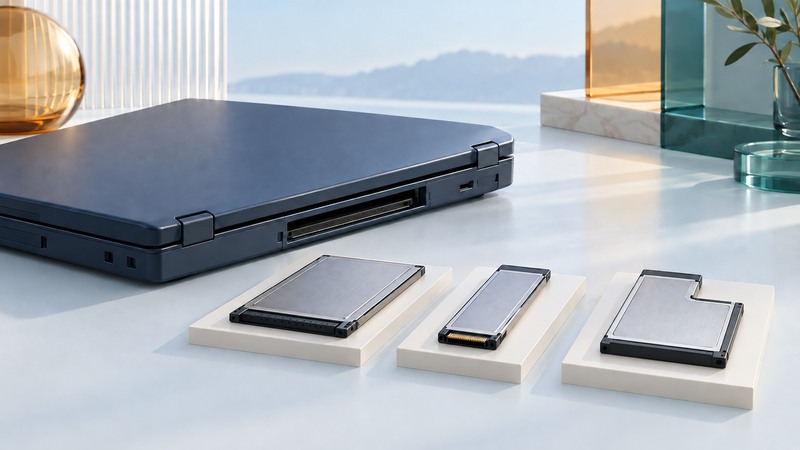
PC Card, CardBus and ExpressCard belong to older expansion ecosystems. Reusing them starts with exact identification of the host slot, card interface and supported driver. Similar names or widths do not establish electrical compatibility, and a mechanical adapter may carry only one of the signals a card needs.
Identify the slot and card separately
Read the computer's service or owner manual and the card's label. Record model and revision numbers, operating system and the function you need. Photograph the connector and any identification label without forcing the card into a slot to “see if it fits.”
On narrow screens, focus the table and use the arrow keys or swipe to see every column.
| Family | Identification clue | Compatibility question |
|---|---|---|
| 16-bit PC Card | PC Card/PCMCIA documentation and the exact card identifier | Does the host or adapter explicitly support this older interface? |
| 32-bit CardBus | CardBus designation in the card and host specifications | Does the slot support CardBus and the required OS driver? |
| ExpressCard/34 | Narrow straight form, 34 mm nominal width | Does the card use USB, PCIe or another explicitly documented supported arrangement? |
| ExpressCard/54 | Wider stepped form with a narrow connector end | Does the host accept this shape and provide the needed interface? |
Dell's Inspiron 1521 owner's manual illustrates ExpressCard/34 and ExpressCard/54 and documents support for that particular computer. Use it as a shape reference, then locate the manual for your own host. A 54 mm width does not turn ExpressCard into PC Card.
Read the adapter's signal limitations
An adapter can change the mechanical connection, bridge an interface or expose only a subset of available signals. Its full specification must name the source slot, destination card family and supported bus. Check power requirements and whether a separate USB connection is necessary.
A useful historical example is StarTech's discontinued EC2CBU CardBus-to-ExpressCard adapter. Its data sheet specifies USB-based ExpressCard/34 devices, excluding PCIe-based ExpressCards. This illustrates why the adapter's bus support belongs in the compatibility record.
Compatibility decision: suppose a specialist ExpressCard fits an adapter but its manual identifies it as PCIe-based. An adapter documented for USB-based cards alone does not provide the required path. Stop there and find an explicitly supported host or bridge; installing more drivers will not create the missing interface.
Also check the reverse direction. An adapter described as connecting one family to another should not be assumed reversible. Read the installation diagram and host requirements rather than relying on a marketplace title.
Confirm software before buying hardware
Locate the manufacturer's supported driver, OS versions and required application. Preserve legitimate installers, manuals and licenses through your normal records process. Avoid treating an unknown driver download as evidence of support.
For a card controlling specialist equipment, check the equipment software as well as the expansion driver. A driver that loads successfully may still leave an application feature unavailable. If an old operating system is required, decide with the responsible administrator how that machine will be maintained and connected before making it part of an operational workflow.
Compare the total effort with a currently supported external replacement that performs the same function. Include the cost of downtime, cabling, software migration and access to a spare host. Keeping an existing validated system can make sense; depending on one untested used adapter is a different decision.
Test on noncritical work first
- Back up the host and preserve the existing working configuration. Obtain the correct installation and removal instructions.
- Use the manufacturer's prescribed power state and insertion sequence. Do not assume every adapter supports hot insertion.
- Confirm device identification in the OS, then test a harmless representative operation in the real application.
- Check reconnection, restart and sustained operation as supported. For storage, use expendable test data and verify the transferred files.
- Record the exact host, card, adapter, driver and application combination, including any unavailable features.
Do not attach unvalidated hardware to a production control system simply because the OS recognizes it. Follow that system's commissioning procedure. If the trial fails, return to the compatibility record and isolate the missing requirement before changing another component.
Leave a reusable compatibility record
Keep the known-good configuration, installation sequence and recovery route with the equipment. Add an explicit replacement plan if the host or card is no longer supported. Review it when the OS changes or a spare component becomes difficult to obtain.
The modular-computer guide provides a broader method for assessing replaceable parts and support. For old hardware, a documented working path is more valuable than the promise that a connector family is broadly compatible.