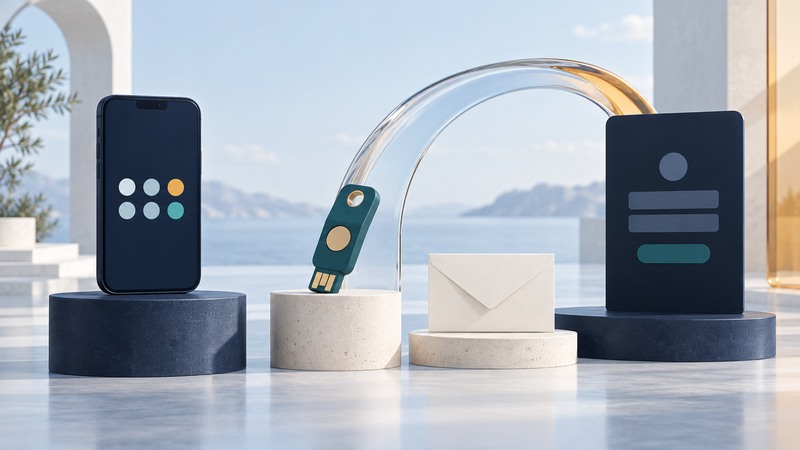
Choose account protection by asking two questions: what would an attacker need to sign in, and how would you get back in after losing your device? A convenient daily sign-in works best alongside a separate, tested recovery route.
AOL PassCode brought a rotating hardware-token code to consumer accounts in 2004. That historical service illustrates the extra possession factor: the user had both an account password and a device producing changing codes. Today's choices include authenticator apps and public-key passkeys, with different phishing and recovery properties.
Separate the words that sound alike
A device passcode or PIN unlocks a handset or authenticator locally. An account password is a secret used to sign in to a service. A one-time code is submitted for a limited authentication event. A passkey uses a cryptographic key pair associated with a service, with the private part controlled by an authenticator or passkey provider.
With many passkey systems, a fingerprint, face check or device PIN authorizes use of the key on your device. The website receives a cryptographic response, not a copy of that fingerprint. Protecting the device and its unlock method remains consequential.
The NIST authentication guideline distinguishes passwords, one-time codes and cryptographic authenticators. It also explains why manually entered codes can be relayed through a phishing site, whereas properly implemented verifier-bound authentication resists that attack.
Compare the methods offered by your account
| Method | Useful property | Recovery and practical limits |
|---|---|---|
| Text-message code | Adds a separate check to a password when the service offers it. | Depends on control and availability of the phone number; plan for loss or a number change. |
| Authenticator-app code | Generates codes from a provisioned secret, usually without mobile reception. | Protect the app and its backup or transfer process. A phishing page can request and relay a valid code. |
| Push approval | Lets you approve a sign-in request on another device. | Only approve a request you initiated and understand. Repeated unsolicited prompts need investigation. |
| Synced passkey | Supports cryptographic sign-in across devices through a compatible provider. | Recovery depends partly on the provider account and its device/recovery rules. |
| Device-bound passkey or FIDO security key | Keeps the credential on a particular authenticator. | Register another supported authenticator or recovery route before losing the only one. |
The FIDO Alliance's synced-passkey guidance discusses consumer deployment and recovery considerations. “Security key” describes hardware; check whether the service uses it for FIDO authentication or for another function. Available methods and account recovery vary by provider.
Understand changing codes and setup secrets
The TOTP specification, RFC 6238, derives codes from a shared secret and a time step. A common step is 30 seconds, though a service's settings determine its actual behavior. The setup QR code often contains the underlying secret; someone who obtains it may be able to generate future codes.
Keep setup QR codes, export files and recovery codes out of chat messages, shared notes and screenshots intended for support. Follow the authenticator's documented backup process, and protect any account that syncs its secrets.
If a code fails, first check the account entry, the device's automatic time setting and whether you entered a fresh code. Use the service's recovery process if necessary. Repeated guesses or resetting the factor before you have a working alternative can complicate access.
Upgrade one important account at a time
- Start with email and your password manager. Open their security settings through a known app or bookmarked address.
- Review existing access. Check recovery details and registered devices. Remove entries you can confidently identify as obsolete using the provider's process.
- Add a supported method. Where offered, consider a passkey or FIDO key. Label authenticators clearly so you can distinguish them later.
- Keep a working backup. Store recovery material in a protected location accessible if your main phone is lost. A second registered key should be stored separately.
- Test before retiring the old method. Use a separate browser session for a fresh sign-in while retaining a working session. Confirm the backup path according to the provider's instructions.
Review weaker fallback methods as well as the primary method. Turning on a passkey does not necessarily remove password or phone-based recovery. Decide deliberately which routes to keep, taking account availability and your recovery needs into account.
Rehearse the loss scenario
A lost phone, compromised email account and unavailable cloud provider are different failures. Work through each dependency: where the credential lives, how the provider account is recovered and which device can use the backup. Use the phone preparation guide for device loss.
If someone unexpectedly asks you to read them a login code or approve a push, stop and verify the request through a known channel. If you already shared a code, secure the account from a trusted device and review sessions and recovery details. Phishing-resistant sign-in reduces an important attack path; malicious software and unsafe account recovery still need attention.