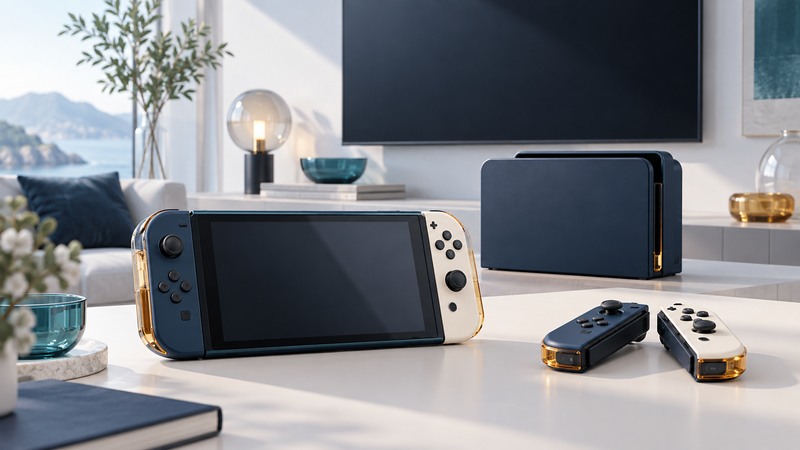
Start with three questions: which games do you want to play, will you use a television, and are you setting up an existing Switch or considering Switch 2? Those answers are more useful than choosing by screen size alone. This guide covers the original Nintendo Switch family and the checks that matter when moving to its successor.
Identify the system before buying accessories
Read the model name on the console and its packaging, especially when buying used. A seller's shorthand “Switch” can cover different hardware. Nintendo's official model comparison and play-mode compatibility table are the reference points for the original family.
On small screens, swipe the table sideways. With a keyboard, focus the table and use the arrow keys.
| Model | What it offers | Check before choosing |
|---|---|---|
| Nintendo Switch | Handheld, tabletop and TV play; detachable Joy-Con. | Condition, included dock and power supply, and controller operation. |
| Switch – OLED Model | The same Switch software family with a larger OLED screen, wider stand and other hardware refinements. | Whether you will benefit from the built-in screen; accessory fit can differ. |
| Switch Lite | Compact system with built-in controls, designed around handheld play. | No TV output. Check each game's handheld-mode support; separate controllers need a charging solution. |
| Switch 2 | A separate generation with its own games and compatible Switch games. | Use the current title and accessory compatibility checks, including any exceptions. |
A dock-shaped accessory does not give a Lite television output. For a household that expects to share a large screen, establish TV play first, then compare condition, comfort and total cost.
Set up for one successful play session
- Gather the correct equipment. Use the console's documented power supply and, for TV play, a compatible dock and HDMI cable. Inspect used equipment before connecting it.
- Start on the console screen. Follow the initial setup, connect to your network, and install the offered system update. Create the intended player's user profile and review account and parental-control settings.
- Test one game in handheld mode. Confirm that buttons, sticks, sound, touch input where used, and charging behave as expected.
- Then test the intended play mode. For a dockable model, select the TV's correct HDMI input and follow Nintendo's connection instructions. For tabletop use, place the console securely and confirm controller pairing.
- Save, close and reopen. Confirm you can return to the same profile and saved progress before adding more accounts or games.
If handheld play works but the TV remains blank, focus on the dock power, HDMI path, TV input and model compatibility. That observation narrows the problem more effectively than changing every console setting.
Check the exact game and multiplayer arrangement
A game purchase should answer four separate questions: which console runs it, which play modes it supports, how many people can play on one system, and what online play requires. “Multiplayer” can mean sharing one console, connecting several nearby systems, or using the internet. Read the game's own listing for the arrangement you intend.
For Switch 2, consult Nintendo's Switch game compatibility information and the specific game's current listing. Check accessory-dependent games individually. A compatible Switch game and a Switch 2 Edition upgrade are separate purchase and feature questions.
Prepare an upgrade around your saves and accounts
Before moving to Switch 2, follow Nintendo's current system-transfer guide. Read the instructions for the transfer route you will actually use, particularly if the old console will be sold before the new one arrives.
- List the users and Nintendo Accounts on the existing console.
- Check the transfer rules for your important games and any title-specific save tools.
- Confirm which accessories and storage media can move to the new system.
- After transfer, open your important games and verify saved progress on the destination before erasing or handing over the old console.
For a used-system decision, compare the complete package: working controls, dock where relevant, power supply, storage needs and games. A low console-only price can become less attractive when essential items are missing.
Next, explore Pokkén Tournament DX's first practice session or the 2017 Fire Emblem Warriors guide.