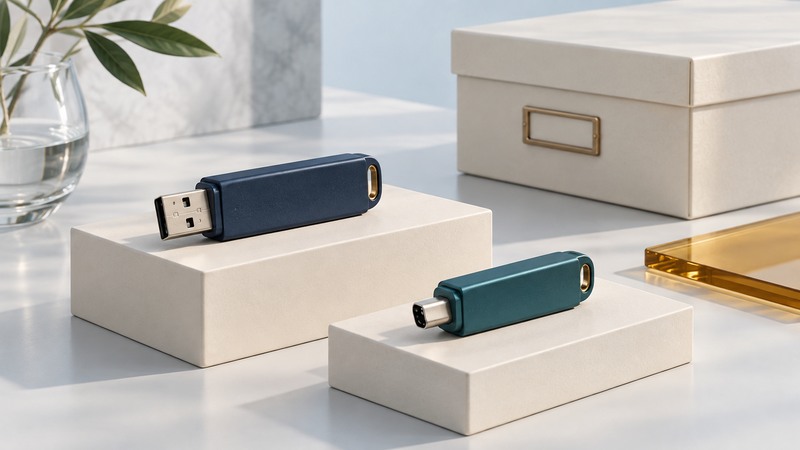
A USB flash drive is convenient for carrying files between devices. Choose it for the ports and file systems at both ends, test it before trusting important data, and keep another recoverable copy. The capacity on the package and the shape of the plug answer only part of the compatibility question.
Check every device that will use the drive
List the computers, television, vehicle, camera accessory or other equipment involved. Look up supported file systems, capacity limits and file formats in each manual. A device may recognize a drive but reject an individual video or document for reasons unrelated to the USB connection.
USB-A and USB-C describe connector shapes. The USB-IF connector specification overview describes USB-C as a connector system supporting different performance capabilities. Check the drive's actual transfer specification and the host port. An adapter can solve a physical fit problem while leaving other limits unchanged.
For tight adjacent ports, check the housing width as well as the plug. Consider a protective cap, durable attachment point and clear labeling if the drive will travel. Keep private material on a device and encryption workflow supported by every authorized recipient; the small size makes physical loss easy.
Select the file system before filling the drive
On narrow screens, focus the table and use the arrow keys or swipe to see every column.
| File system | Useful consideration | Check |
|---|---|---|
| FAT32 | Often supported by older equipment; individual files are limited to 4 GiB minus one byte. | The largest file, supported volume size and device manual |
| exFAT | Supports large individual files and is useful across many current computers. | Explicit support on TVs, vehicles and other embedded devices |
| NTFS or another system-specific format | May suit a particular computer workflow. | Read and write support on every destination, including required software |
Kingston's DataTraveler support guidance explains why a large file can fail on FAT32 despite ample free space. The limit concerns one file. A collection of smaller files may fit on the same drive.
Formatting erases the selected volume's contents. Confirm the device name, capacity and selected drive before proceeding, and disconnect unrelated removable drives if that reduces ambiguity. Follow your OS and equipment instructions.
Distinguish capacity units from a defective drive
Manufacturers commonly express capacity in decimal bytes, while some operating-system displays use binary units or reserve space for formatting. As a calculation example, 64,000,000,000 bytes is about 59.6 GiB before file-system overhead. That expected difference is separate from a drive that overwrites old files or loses data when filled.
A reported capacity alone does not verify usable storage. Test a new empty drive with a write-and-read capacity tool when authenticity or reliability is in doubt. The F3 project's documentation explains its write/read tests and distinguishes its destructive low-level probe. Choose the supported tool and procedure for your OS; use an empty, backed-up device and verify the target carefully. A quick speed test covers a different question from a full capacity test.
If verification reports corruption or less real capacity than advertised, stop using the drive for important data and pursue a return. Keep the test report. A passing test establishes the result at that time and through that port; retain another copy of files you care about.
Judge sustained transfers with your own files
Read speed and write speed can differ substantially. A large sequential file and thousands of small files also exercise different parts of the workflow. Time a representative transfer after the destination is ready, and include verification if it is part of your real task.
- Copy the files while keeping their originals.
- Check counts and sizes; reopen representative files from the destination. For exact integrity checking, compare cryptographic hashes using a trusted tool.
- Close applications using the drive, wait for copying to finish and use the OS eject/safe-removal command.
- Reconnect at the destination and confirm the receiving device can use the files before deleting any source copy.
For larger active projects, compare the sustained performance and durability of portable SSDs and hard drives. For device retirement, use the media-specific guidance in computer disposal and data sanitization.