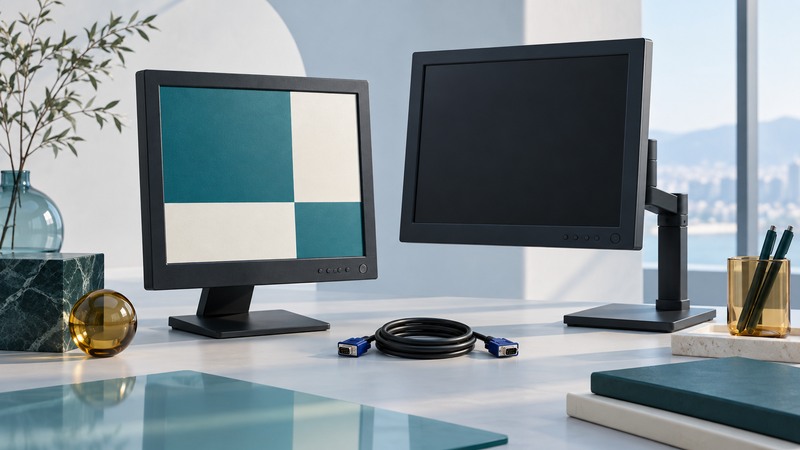
An IBM ThinkVision L150 or L150p can still serve a modest display task when its connections, image quality and usable screen area fit the job. Identify the exact model first, establish a known-good signal, then evaluate it with the application you intend to use.
Know which ThinkVision you have
Read the rear model label and inspect the available ports. The IBM ThinkVision L150/L150p user guide, April 2004 provides the following distinctions. Its connection, display-mode and specification sections are the relevant references; regional or hardware revisions should be checked against the label.
On narrow screens, focus the table and use the arrow keys or swipe to see every column.
| Feature | L150 | L150p |
|---|---|---|
| Panel | 15-inch LCD; 1024 × 768 | 15-inch LCD; 1024 × 768 |
| Analog input | VGA / D-sub | VGA / D-sub |
| Digital input | None specified | DVI digital input |
| Stand adjustment | Tilt | Tilt, swivel and height adjustment |
Use 1024 × 768 at 60 Hz as the manual’s recommended starting mode. The L150p’s digital input avoids the analog sampling adjustments associated with VGA. These ThinkVision LCDs are separate from the G51 CRT family discussed in the IBM monitor recall identification guide.
Plan the entire signal path
Write down three items: the computer’s output, the adapter’s input/output direction, and the monitor’s input. Check the adapter manufacturer’s supported timings and any power requirements. A plug that fits solves only the mechanical part of the connection.
- For an existing VGA computer, start with the direct VGA connection and a known-good cable path.
- For a digital computer feeding the L150p, verify a compatible digital-to-DVI path for the exact output. Keep the chain short so a fault is easier to isolate.
- For a digital-only source feeding the L150, specify conversion to analog VGA. Check that the converter supports the source and 1024 × 768 at 60 Hz.
- For USB-C, establish the computer’s actual video-output capability before choosing an accessory; the connector name alone does not settle the question.
Set up and test with ordinary, unprotected desktop content first. If that works but one video service does not, investigate the application and protected-content requirements separately. Buying another monitor cable without locating the failing part can leave the same symptom.
Establish a readable image
- Inspect the case, stand and external cable for damage before use. Follow the manufacturer’s handling and placement instructions; use qualified service for internal faults.
- Connect the chosen signal path, select the appropriate input, and set the computer to 1024 × 768 at 60 Hz.
- On VGA, follow the manual’s Auto Setup procedure. Allow the specified 15-minute warm-up before fine adjustments. Clock and phase are analog image controls; digital input locks the corresponding adjustments.
- Display the actual application with small text, a photograph and a plain background. Look for consistent focus, readable contrast, missing areas and distracting color or brightness variation.
- Try sleep and wake, a computer restart, and the ordinary working position. Record the settings that give a stable result.
Make one change per observation. If text is blurred everywhere, first verify the computer’s resolution. If the image moves or shimmers on VGA, check the cable path and analog setup. If the on-screen menu is clear but the computer image is absent, focus the next check on input selection and the source signal.
Judge the task with a short acceptance trial
Illustrative reuse decision: an owner wants a status display beside a workbench. During a trial, all essential readings fit and remain legible at the working distance, but a configuration dialog extends below the screen. The display may suit the status view while the configuration task needs another screen. Testing both views exposes the limitation before the monitor becomes part of a daily workflow.
For documents, photographs or a general desktop, test the real file at the intended text size. Record the adapter cost, available desk space and any remaining faults. A useful secondary monitor earns its place by doing the selected job reliably. Persistent image defects, unstable operation or repair needs may make responsible equipment retirement the better next step.