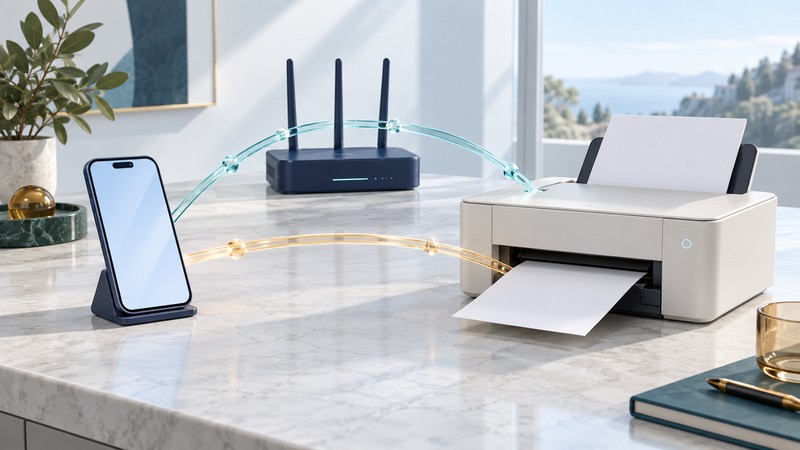
To print from a phone to an HP printer, identify the exact printer model and choose a connection it supports. Ordinary network printing, Wi-Fi Direct and Bluetooth have different roles. A printer appearing during setup is only the beginning; success is the correct document on paper.
Have the model number, phone operating-system version, printer instructions and a harmless one-page test document ready. Use the official HP support page for that model to obtain software and check its supported printing methods.
Choose the path that fits the printer
On a narrow screen, scroll sideways. Keyboard: focus the table and use the arrow keys.
| Path | How it works | What to establish |
|---|---|---|
| Local network | Phone and printer communicate through the home or workplace network. | The printer supports the phone’s print service and the network allows discovery. |
| Wi-Fi Direct | Phone connects to the printer’s own wireless connection. | The exact model supports it; you have its current name and joining credentials. |
| Bluetooth | May assist discovery during setup or support printing on particular models. | The manual explicitly identifies the supported Bluetooth function. |
HP’s Bluetooth guide explains that Bluetooth Low Energy helps the HP app discover printers during setup. It also documents Bluetooth printing on certain older printers with adapters. A Bluetooth-enabled printer therefore needs a model-specific check before you choose Bluetooth as the document transport.
For an iPhone or iPad, Apple’s AirPrint instructions require a compatible printer and a working network connection. Some document apps have no Print command; check the app’s supported export or sharing route if the command is missing.
Complete one small print job
- Prepare the printer. Load the correct paper, resolve its displayed errors and confirm that it can produce its own information or test page.
- Establish one connection. For ordinary network printing, join the phone and printer to the intended local network. For Wi-Fi Direct, follow the printer’s own setup instructions and confirm its displayed identity.
- Open the saved document. Start with a local file so an internet download is a separate issue. Choose Print in the document app or the supported print service.
- Check the destination and settings. Confirm the printer, page range, paper size, orientation and copies before sending.
- Inspect the output. Verify that the intended page printed once, at a readable scale. Keep this small job as your baseline.
HP’s Wi-Fi Direct instructions provide device-specific steps, including Android printing through the HP Print Service Plugin. A direct link supplies a printer connection; internet access for downloading a document remains a separate requirement.
Locate the failure before resetting
If the printer is absent from the selection list, compare the network names and verify the selected connection method. A guest network may deliberately separate clients. On a workplace network, ask its administrator for the approved printing route before changing isolation or security settings.
If the printer is visible but nothing emerges, inspect its display and the phone’s print queue. A paper mismatch or paused job can resemble a wireless failure. Cancel a stuck test job before retrying so delayed delivery does not produce unwanted copies.
Fictional example: a phone sees the printer in the HP setup app through Bluetooth, but its document app lists no printer. The model manual specifies Wi-Fi printing. Finish joining the printer to the local network, connect the phone to that network, and repeat the saved one-page job. The useful change is establishing the documented print path.
Keep a recoverable configuration
Record the model, chosen connection, phone OS, print service and successful test date. Keep passwords in an appropriate private store. After using a temporary direct connection, return the phone to its normal network and confirm internet access.
When seeking support, report whether the printer can print its own page, whether another device can print, and whether the fault is discovery, job delivery or output formatting. Those comparisons make the next troubleshooting step much more specific than reporting only that wireless printing failed.
For a wider connection problem, use home Wi-Fi setup or laptop Wi-Fi diagnosis. Venue administrators can consult guest-network isolation and acceptance tests.