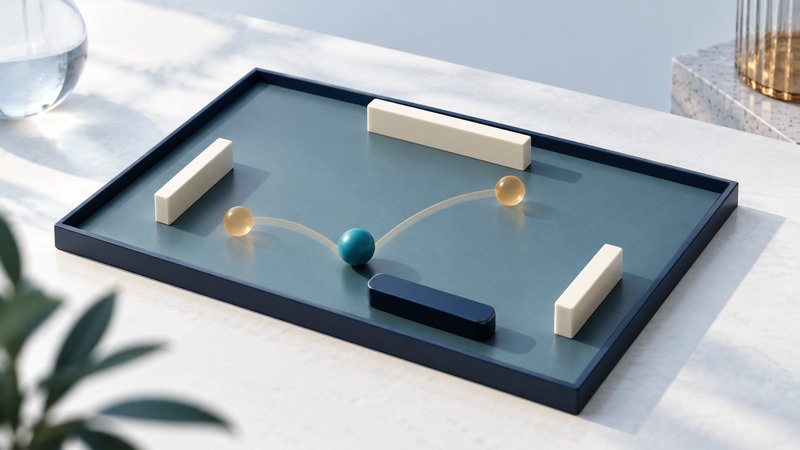
A small playable game is a useful way to learn how input, state, time and drawing work together. This paddle exercise keeps those pieces visible: move a paddle, catch a bouncing ball, count catches and restart. You can play it first, then change one rule and compare the behavior.
Open the paddle demo or download its source kit. The demo uses ordinary browser JavaScript and a Canvas 2D drawing surface. It begins paused, supports keyboard and on-screen movement controls, and requires no external library or account.
Play and establish a baseline
Press Start, then use Left and Right while the court has keyboard focus. On touch screens, hold the movement buttons. Keep the paddle beneath the falling ball. A catch increases the catches counter; a missed ball resets its position and increases misses. Reset returns the entire game to its initial paused state.
The logical court is 640 by 360 units. Resizing the page scales its display while preserving those coordinates. The paddle is 80 units wide at vertical position 330. The ball has radius 8 and starts with horizontal velocity 110 units per second and vertical velocity 140 units per second. These are teaching values chosen for this example.
The download contains model.js for state and movement, play.js for input and drawing, and index.html for the page. Extract the archive and open demo/index.html in a browser. This demo uses classic scripts, so it can run from local files. Read the included README before changing the controls.
Keep the rules separate from drawing
The model stores position, velocity, paddle position and counters. A simulation step receives a movement direction and an elapsed duration. Its central movement rule is:
state.x += state.vx * dt;
state.y += state.vy * dt;
If horizontal velocity is 110 units per second and dt is 1/120 second, one step moves the ball about 0.917 units horizontally. After 120 unobstructed steps, the displacement is 110 units. The renderer reads that state and paints it; drawing another frame alone leaves the rules unchanged.
This separation gives you a practical debugging tool. If the model's positions are correct but the picture is wrong, inspect drawing and scaling. If the position itself is wrong, inspect input, timing and collision rules. A console log of a small number of simulation steps can be more useful than logging every rendered frame.
Account for time explicitly
The browser's requestAnimationFrame callback supplies a timestamp. Display refresh rates vary, and callbacks usually pause in background tabs; MDN's animation-frame documentation explains why animation should use time rather than assume a particular frame rate.
This example accumulates elapsed time and advances the model in fixed steps of 1/120 second. A rendered frame can contain zero, one or several simulation steps. It caps a frame's elapsed contribution at 0.05 second and pauses on page hiding or window blur. Those choices keep this small toy from making a large jump after an interruption. The cap deliberately discards excess elapsed time during a long stall, so it is unsuitable as a wall-clock simulation without a different recovery policy.
Examine the collision rule
Side walls reflect horizontal velocity; the top reflects vertical velocity. For the paddle, the model checks that the ball crosses its top while descending and overlaps its horizontal span. A catch places the ball just above the paddle and sends it upward.
This is a limited collision model for one slow ball and a horizontal paddle. Increasing speed sharply or adding many moving obstacles calls for more careful collision detection, potentially considering motion throughout the whole step. Begin by testing the existing rule at its present speeds before extending it.
| Change to try | Predict first | Check afterward |
|---|---|---|
| Reduce paddle width | Catching becomes harder | Boundary clamps and collision width use the same value |
| Increase ball speed modestly | Less reaction time | Ball still reflects at walls and catches consistently |
| Add a target score | A catch can end play | The final score remains visible and Reset works |
| Add a second ball | State needs two independent balls | Each ball has its own position and velocity |
Test transitions as well as motion
Check Start, Pause and Reset in different orders. Hold a movement key, move focus away, and return; movement should stop when focus is lost. Resize the page and confirm the court keeps its shape. Hide the page and return; the game should remain paused until you explicitly resume.
For a rule change, record a starting state and expected next state. A ball crossing the paddle from above should reverse vertical direction and add one catch. A ball moving upward near the paddle should continue upward without adding a catch. A paddle held left should stop at zero. These small checks isolate mistakes quickly.
When this loop feels understandable, the first 3D scene guide introduces a camera, lighting and object transforms. If you are maintaining an existing C# game, the XNA migration guide focuses on recovering a reproducible baseline before porting it.