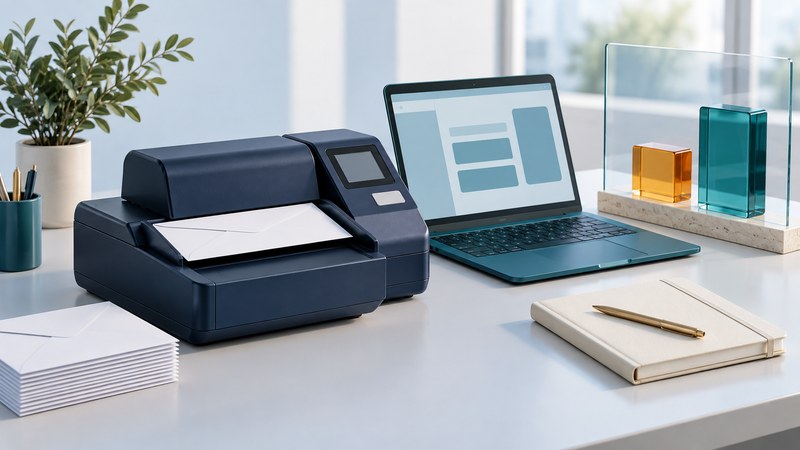
A postage refill can involve two different balances: the money or available credit in a postage account, and the postage available to print on a particular meter or application. When a refill fails, identify which balance needs attention before sending another payment or repeating the request.
This guide concerns US office postage systems. Use the current instructions for your provider, account type and equipment model. For UK online labels, use the separate Royal Mail online-postage guide.
Identify where the funds are
The USPS Domestic Mail Manual, section 604.4 distinguishes postage meters, which download, store and account for postage, from PC Postage products. It also lists authorized meter providers. Start with your device's model and serial number and its associated provider account; a generic instruction for “online postage” may describe a different product.
| Record | What it helps establish | Next check |
|---|---|---|
| Bank or card payment | A payment was initiated or posted by the payment service | Has the correct postage account credited it and made funds available? |
| Provider account | Available prepaid funds or credit under that account's terms | Is this the account linked to the intended meter or application? |
| Meter or app balance | Postage available within the selected printing workflow | Did the refill finish, and does its receipt match the balance change? |
Pitney Bowes' US refill guide separately identifies meter postage and available account funds or credit. There can also be separate printing balances within one device: its SendPro C family shipping-label instructions distinguish shipping-label funds from Print on Envelopes funds. Confirm the selected workflow before interpreting a low-balance message.
Use payment instructions for the right account
Open the provider's official portal through a known address or the support route on your account documents. Identify whether you are funding prepaid postage, paying a funding statement or paying an equipment invoice. Use the account reference and payment destination specified for that purpose.
Quadient's US postage and funding FAQ explicitly separates USPS prepayments from Quadient Postage Funding payments. It directs customers to their current account instructions and statements. It also explains that processing depends on payment method and delivery time. A payment leaving a bank account therefore needs to be reconciled with the provider's available-funds record.
Before choosing an amount or method, check applicable fees, limits, authorization requirements and processing time. Ask the person responsible for the organization's account to approve any change to payment arrangements. Avoid carrying forward a processing-time promise or bank detail from an old brochure.
Complete one refill and verify its result
- Choose the intended device or application. Check the serial number or account identity and whether the request funds envelope printing or shipping labels.
- Record the starting position. Note the available meter/app balance and relevant provider funds or credit. Confirm the permitted refill amount.
- Check readiness. Follow the model's connection and error-resolution instructions. Ensure the device is ready for the transaction and that you have refill permission.
- Submit the approved amount once. Review the amount and selected destination before the final confirmation.
- Wait for the final result. Save the confirmation or receipt and check the updated balance. If the status remains unclear, review transaction history before making another request.
For a specific example, Pitney Bowes' Your Account refill instructions cover SendPro C, SendPro C Auto and SendPro Mailstation. They require internet connectivity, a meter that is not in use and no displayed errors. The page warns that closing the browser does not cancel the refill; wait for confirmation. Follow the current supported procedure for your own model.
Locate the failure before repeating the transaction
Payment sent, provider balance unchanged: check the account reference, posting date, payment status and the provider's stated processing window. Keep the payment reference for the account team. A second payment can create an unnecessary duplicate while the first is still being processed.
Provider funds available, meter refill fails: record the exact error, requested amount and model. Check the documented connection, transaction permissions and balance limits. Use the provider's model-specific support sequence; do not clear transaction records as a general troubleshooting step.
One printing balance is funded, another remains low: verify the app or function you are using. A shipping-label balance and an envelope-printing balance may be managed separately even on the same device.
Balance changed but a print job fails: distinguish funding from rate selection, ink, label stock and the job itself. Retain any misprinted postage and consult the applicable provider and USPS refund guidance before discarding it or repeating a paid print.
Request timed out or completion is uncertain: check history and receipts, then contact support if the records disagree. Quote the time and timezone of the attempt so the provider can locate it.
Keep enough evidence for the next person
Use the postage-refill record to capture the provider, masked account identifier, meter model, intended workflow, starting and ending balances, amount, timestamp, result and support reference. Keep receipts with the office's authorized records. Leave passwords, full card numbers and banking credentials out of a shared troubleshooting note.
Review low-balance alerts and refill responsibilities around actual mailing volume and payment processing time. A repeatable record makes it easier to spot a missed transfer, a different account or an unexpected charge. Check current provider terms before enabling automatic funding or changing credit arrangements. Return to the Office Supplies library.