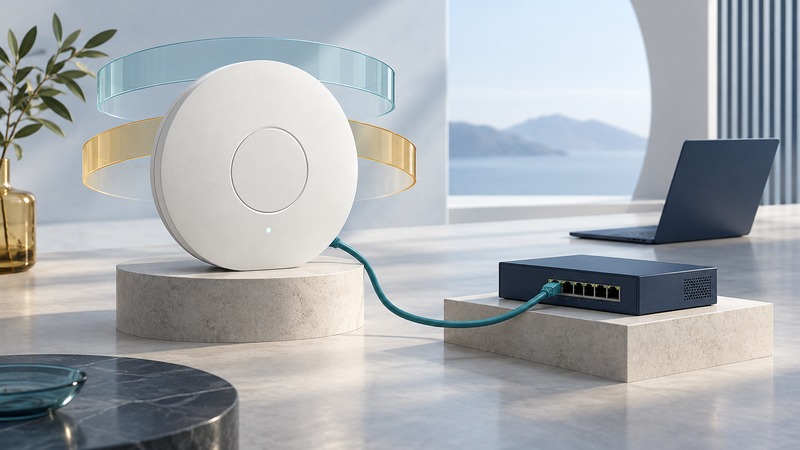
A dual-band access point adds Wi-Fi coverage to an existing wired network. Choose it by the clients, cable connection, power source and management features it must support. Its advertised radio speed is only one part of that decision.
This guide is for a household or small office with a working router and a possible Ethernet route to the coverage area. Obtain the access-point manual and the switch or injector specifications before buying or connecting power.
Start with the network role
A standalone access point normally bridges wireless clients onto an existing network. Your router continues to provide internet routing and, in a typical home setup, DHCP address assignment. An all-in-one consumer router can sometimes serve this role through a supported access-point mode.
Sketch the intended path: internet gateway → LAN switch or router LAN port → access point → Wi-Fi clients. If power comes from a PoE injector, the injector’s data input and powered output occupy specified positions along that path. Follow the labels and manual for the exact device.
Before reusing an old router, check its current support status and mode instructions. Adding it in router mode creates another network boundary. Simply connecting a cable and reusing the network name does not establish the intended configuration. The home setup guide explains the equipment roles.
Read the specifications as a compatibility checklist
On a narrow screen, scroll the table sideways. Keyboard: focus the table and use the arrow keys.
| Item | Question to answer | Why it matters |
|---|---|---|
| Radio bands | Does it serve 2.4 and 5 GHz simultaneously? Does the task require 6 GHz? | Client support and local conditions determine usable bands |
| Ethernet uplink | Is the port 1, 2.5 or more gigabits per second, and what supports it upstream? | Traffic leaving the access point shares that link |
| Power | Which PoE standard or approved adapter does this exact model require? | The plug shape alone does not establish compatibility |
| Management | Is setup local, controller-based or cloud-based? | Accounts, ongoing operation and recovery may have dependencies |
| Network features | Are guest separation, VLANs or authentication features supported end to end? | An access-point checkbox alone cannot configure the rest of the network |
| Lifecycle | How are firmware and support status published? | A supported device is easier to maintain securely |
Specification example, checked September 2026: Ubiquiti’s U6 Pro technical specification lists 2.4 and 5 GHz radios, one GbE port, PoE power, and 13 W maximum device consumption. It also lists a 4.8 Gbps maximum 5 GHz radio data rate under a specified channel width. The radio figure and Ethernet uplink describe different interfaces; a single internet transfer through that GbE port cannot acquire a 4.8 Gbps wired path. This is an illustration of reading a datasheet, not a product ranking.
Wi-Fi 6 and 6 GHz are different labels. Check the supported frequency bands directly if a new laptop’s 6 GHz capability drives the purchase. Also check regional availability and your device’s driver support. A dual-band access point may still suit a room whose clients and applications work well on its two bands.
Match PoE at both ends
Power over Ethernet can carry data and power along the same cable. The source may be a compatible switch port or an approved injector. Verify the required standard, per-port supply and total switch power budget with both manufacturers’ documentation. Passive PoE and standards-based negotiated PoE need explicit compatibility; do not assume interchangeable power because both use an Ethernet connector.
For several access points, account for all powered devices on the switch. A device’s consumption figure is not by itself a complete power-source sizing calculation: allocation rules and cable losses can matter. Use the supported combination and budget method, rather than improvising an injector voltage.
Follow the mounting instructions for orientation, ventilation and the intended environment. Indoor equipment belongs in supported indoor conditions; an outdoor installation brings additional cabling, weather and electrical requirements that need its own approved design.
Configure one access point before scaling up
- Confirm the cable works with a known device and inspect the negotiated Ethernet link rate.
- Connect the approved power arrangement and wait for the documented ready indication.
- Adopt or configure the access point using the official local interface, controller or app. Install supported firmware.
- Assign the intended network and supported wireless security. Keep administration accessible only through the authorized management path.
- Connect a test laptop, verify internet access, and check any required printer or local service.
- Mount it in the proposed location and repeat the test at the real desk or seating area.
For several access points on one network, coordinate security and network settings. Give clients a consistent intended service and test movement between locations. Roaming behavior remains client-dependent; Apple’s roaming documentation explains how supported clients use network information and authentication features.
A room-level acceptance example
Fictional office: the router is downstairs and an existing cable reaches an upstairs desk. A wired access point is installed near that desk. The first test reports a 100 Mbps uplink although both device ports support gigabit Ethernet. Before changing Wi-Fi settings, replace or diagnose the cable path and verify negotiation again.
Once the wired link is correct, test the office laptop and phone simultaneously using their normal work. Compare near-access-point and desk performance. Check that guest access, if enabled, follows the intended boundaries. Use guest Wi-Fi management for a multi-user venue.
Save the configuration and record the model, mounting location, switch port, power method and management recovery process. If cabling is impractical, compare the backhaul checks in Wi-Fi mesh planning.