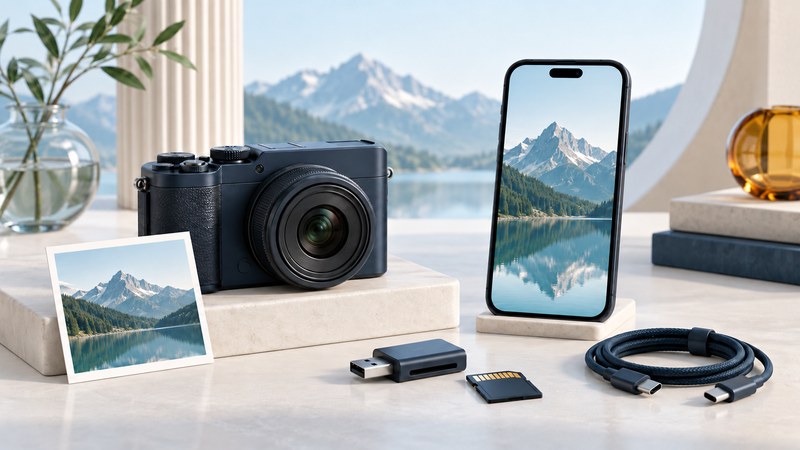
For a few photographs you want to share now, a camera's supported phone app can be convenient. For a large import, RAW files or an older camera with obsolete wireless software, a compatible card reader or USB connection may be the simpler route. Start with the exact camera model and the files you need.
The job is complete when usable files are saved at the destination and checked. Seeing thumbnails inside a camera-control app only confirms that you can browse something; open the saved files in the destination's normal photo or file application.
Choose the route before troubleshooting it
On a small screen, scroll the table sideways. Keyboard users can focus the table and use the arrow keys.
| Route | Good starting use | Confirm first |
|---|---|---|
| Manufacturer phone app | A small selection, remote shooting or supported automatic transfers. | Exact camera support, current phone OS, app permissions, and file size/format options. |
| Camera USB connection | Import through a supported computer or phone workflow. | Data-capable cable, correct camera USB mode, host support and adequate power. |
| Memory-card reader | Larger batches or files from a camera whose old software no longer fits. | Exact card type, reader and host compatibility, sufficient storage and a supported file format. |
Similar-looking media can have different interfaces. Check the card's full type and the reader's supported list; a slot's shape alone is insufficient. Use the normal card-removal procedure in the camera manual, and allow all writing to finish before removing media.
Make one successful wireless transfer
- Identify the model and app. Read the camera's current support page and the app's compatibility requirements. Follow the manufacturer's link to the official app store listing.
- Start the connection from the documented place. Some systems pair within the app; others first show a camera network or QR code. Confirm that the device name belongs to your camera.
- Allow the connection features the app requires. Review Bluetooth, local-network or nearby-device permissions as applicable to the phone. Grant photo-library access appropriate to saving the selected files.
- Select one test photograph. Choose the offered size and format deliberately. A reduced sharing copy can be useful, while preservation calls for the original files through a supported route.
- Check the saved result. In the phone's Photos, Gallery or Files application, inspect pixel dimensions and format, enlarge the picture, and confirm it is available after the camera connection ends.
Canon's EOS M50 wireless-transfer instructions show a specific example: Bluetooth pairing helps establish the connection, and the image-transfer workflow uses Wi-Fi. The instructions also include a save-size choice. Treat that as an example of distinct pairing and transfer stages, rather than a universal recipe for every camera.
A camera's direct Wi-Fi network may provide a connection to the camera without providing internet access. Follow the manufacturer's instructions when the phone reports that condition. Rejoin your normal network afterward if required.
Locate the stage that failed
On a small screen, scroll the table sideways. Keyboard users can focus the table and use the arrow keys.
| Symptom | Next check | Useful evidence |
|---|---|---|
| Camera never appears | Model/app support, camera connection mode and required permissions. | Exact model, firmware, app and phone OS versions. |
| Pairing succeeds but images will not load | Whether the Wi-Fi stage completed and another device is already connected. | Camera network name and exact app message. |
| Thumbnails load but saving fails | Destination permission, free space and format restrictions. | A single JPEG result compared with the failing file type. |
| Saved image is smaller than expected | Transfer-size option and whether the source itself was already reduced. | Original and saved pixel dimensions. |
| A previously working pairing fails | Follow the vendor procedure to remove that pairing on both sides and pair again. | Record current connection settings before removing them. |
Keep the camera and phone close for the initial test. Change one thing at a time. A full camera reset can discard unrelated settings, so use the specific connection-reset procedure only when the manual calls for it.
Use a cable or card reader as a complete alternative
For a computer import, create a destination folder before connecting. Use a cable that supports data, select the documented camera transfer mode if needed, and use the operating system's import function or supported manufacturer software. If a cable charges the camera but no import appears, check cable capability and camera USB settings.
With a card reader, copy the required folders into the destination while preserving filenames and associated files. If the system asks to format a card that contains pictures, cancel: formatting is not an import step. Check the reader and card compatibility, and seek a recovery route if the media cannot be read.
Reconcile file counts with paired RAW/JPEG or still/video items, open several full-size pictures, play a video and make a separate backup. Retain the card until the copies are verified. On older cameras, an original cable, old driver or retired wireless service may be difficult to use; a supported reader can often access standard image files without that old application.
Before buying replacement equipment, establish which card and files you actually have. Continue with the backup and recovery workflow so a successful transfer becomes part of a maintained collection.