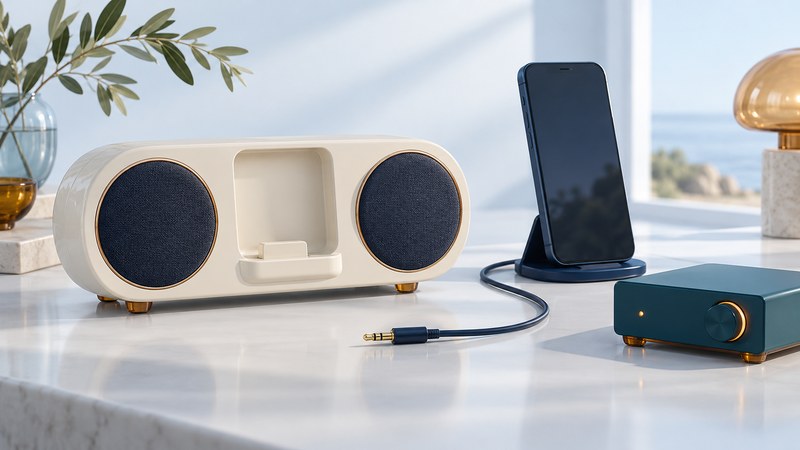
An older speaker dock can remain useful when its working audio input matches a source you own. Begin with the model number and input labels: the shape of a cradle, USB socket or adapter is only part of the compatibility question.
The most straightforward route is often a documented AUX or line input. A proprietary docking connector needs a closer check of audio, power and control support. Use this guide to map the connection before buying an adapter.
Identify what each connection does
Photograph the model label and rear panel. Find the manufacturer's manual for that exact model and revision. Write down the audio inputs, source-selection method, required power supply and any supported player list. Treat USB charging, USB file transfer and USB audio as separate functions until the manual confirms which are supported.
| Connection or function | Evidence to look for | What it lets you decide |
|---|---|---|
| AUX / audio in | Input label, plug size and supported source level in the manual. | Whether a headphone/line output and suitable cable can feed the speakers. |
| Proprietary cradle | Exact supported player models and adapter compatibility statement. | Whether the dock can receive audio from the proposed device or receiver. |
| USB | Explicit description: power, computer synchronization or USB audio. | Whether the port is useful for playback or serves a different job. |
| Power supply | Original part number or manufacturer-approved replacement. | Which supply to use; physical plug fit alone is insufficient. |
| Remote controls | Which functions apply to AUX and which to docked players. | Whether play/pause and track selection remain on the source device. |
A dock with a missing approved power supply or damaged connector needs that issue resolved first. Use manufacturer service guidance for damaged equipment or batteries; opening a powered speaker is outside this connection check.
Map the complete audio path
For a wired AUX route, write the chain as source audio output → compatible cable → dock audio input → dock speakers. If your phone has no headphone socket, add a documented audio-output adapter at the source. Apple's wired-audio guide describes its Lightning and USB-C headphone-jack adapters and their compatibility; consult the equivalent documentation for another source.
For a wireless route, a Bluetooth receiver with the required audio output can feed a suitable dock input. Verify its output, power source and pairing instructions. A transmitter performs the opposite job. An adapter that occupies a proprietary cradle needs an explicit compatibility match for that dock, including how it receives power.
Before spending money
Prove the dock's AUX input with a known-working source and cable if you can. Then add the phone adapter or wireless receiver. This keeps a dead speaker, a bad cable and an incompatible adapter from becoming three unknowns at once.
Record the evidence in the dock compatibility worksheet. It includes fields for model numbers, power documentation, the signal chain and a baseline test.
A documented example: SoundDock Portable
The Bose SoundDock Portable owner's guide (PDF, printed page 8) documents a rear audio input for a second sound device, using a cable with a 3.5 mm mini plug at the dock end. Its instructions say to remove the docked iPod, connect the other device, turn up that device and use the dock's volume controls. The remote's playback controls remain specific to the iPod.
This example shows why the exact manual matters: the presence of an iPod cradle does not determine the only usable audio path. Check your own dock's instructions before applying that sequence to a different model.
Work through a no-sound problem
- Verify the source. Play a known-working recording through its own speaker or suitable headphones. Check mute and output selection.
- Verify the dock input. Select AUX or the documented equivalent; remove a docked player if the manual requires it. Start low and increase volume gradually on both devices.
- Verify the cable. Seat the correct plugs fully. Substitute one known-working compatible cable and replay the same recording.
- Bypass extras. Test the input directly before returning an adapter or receiver to the chain. If direct playback succeeds, focus on the added device's compatibility and settings.
- Separate audio from charging. Record each result independently. Music can work while charging or remote-control features remain unsupported.
Keep the dock if a documented route produces reliable, clear playback and its condition and power supply are sound. Compare the full cost of missing parts and adapters with a replacement if compatibility remains uncertain. For private listening instead, use the earphone fit and value guide; for older car radios, see FM transmitter setup.
Explore all Digital Audio guides. Technical sources are linked beside the claims they support.