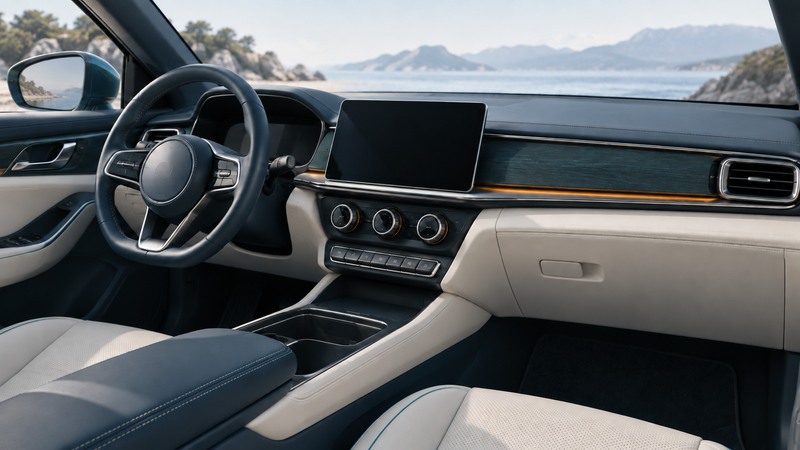
A car’s human-machine interface, or HMI, is the set of displays, controls and feedback through which people use it. Evaluate it by attempting the tasks you actually need, beginning with a safely parked vehicle. A control that looks simple in a photograph may require several steps, an account or a particular screen state.
Set up a fair parked comparison
Use the exact trim and software version you are considering. Adjust the seat, steering wheel and mirrors for each regular driver. Bring the glasses, phone and accessibility aids you normally use. Have the seller explain unfamiliar controls, then try the same short task sequence yourself.
Record the starting screen and state. Finding a function from the home screen can differ from finding it while navigation occupies the display. Treat the parked exercise as a personal usability assessment, not a distraction certification or an invitation to operate menus while moving.
NHTSA describes visual, manual and cognitive distraction. A hands-free interface can still take attention. Complete destination entry, phone pairing and unfamiliar setup before driving.
Start with visibility and frequently used controls
Scroll the table horizontally; keyboard users can focus the table region and use the arrow keys.
| Task | Try it from a realistic starting state | Record |
|---|---|---|
| Clear the windshield | Find front defogging, temperature and fan controls with a map showing | Reach, labeling, steps and visible feedback |
| Use lights and wipers | Locate the manual controls and learn the automated modes | How to change or override the mode as the manual allows |
| Adjust cabin comfort | Change temperature or fan speed without a voice assistant first | Whether the current setting remains visible |
| Manage audio | Mute, change volume and return to the previous screen | Whether common controls remain in a stable location |
| Navigate and connect | Enter a destination, cancel guidance and pair a phone while parked | Accounts, connectivity and steps required |
Check that controls are reachable without compromising your driving position. Distinguish a tactile landmark from a touch-sensitive surface that only looks like a button. Observe whether a press produces clear feedback and whether repeated presses can overshoot the intended setting.
Keep the windshield and hazard-control portions of the manual available. If an essential function remains difficult to locate after explanation, record that as an unresolved fit issue rather than assuming familiarity will certainly solve it.
Compare physical controls, touch and voice by task
Physical knobs can provide a stable location and tactile feedback. Touchscreens can expose many functions and change their layout. Voice systems can help with supported commands, but their usefulness depends on recognition, confirmation and how failures are handled. Judge each with the tasks you need.
Try a few ordinary spoken requests while parked, using your natural phrasing. Note whether the system needs mobile data, a paid service or a signed-in account. Cancel a mistaken request and observe how clearly the system confirms the result. Save the command that actually works, without treating one successful attempt as a reliability study.
The NHTSA driver-distraction guidance collection includes formal visual-manual assessment methods. Those controlled methods are different from a showroom check. Avoid inventing a maximum “safe” number of taps or seconds from your own trial.
Check readability, accessibility and software dependence
Read displays in daylight and, if practical, after dark. Check glare, text size, contrast and brightness adjustment using your usual glasses. Examine whether important messages rely only on color or a quiet sound. Try ordinary reach tasks with the seating position you will actually use.
Ask the seller to explain which controls remain available if phone projection disconnects or a connected service is unavailable. Consult the vehicle manual for screen faults and essential-control fallback procedures; do not simulate failures by disconnecting hardware.
Record the installed software version and any promised future features separately. Buy on demonstrated capability. After a substantial software update, repeat the parked check because menus, shortcuts and settings can change. For a used vehicle, follow the manufacturer’s process to remove former-owner accounts and data before adding your own.
Keep the road portion focused
Set the route, climate and audio before moving. Use a familiar route to assess ordinary sight lines, display legibility and whether alerts are understandable. A passenger can take notes. Stop in a safe place before exploring an unfamiliar function or fixing a pairing problem.
Evaluate each regular driver separately. A control layout that suits one person may be difficult for another because of reach, vision or hearing. For family use, combine the results with the seating-and-cargo fit scorecard.
Finish with a list of essential tasks that passed, concerns that remain and the documentation needed to resolve them. A clear comparison record helps distinguish a brief learning step from a recurring obstacle in everyday use.
Save a practical worksheet
Download the car hmi worksheet (plain text). Open it in any text editor, save a private copy, and fill in the prompts while you work. It includes the article link and supporting references. Record “unknown” when a question still needs evidence.