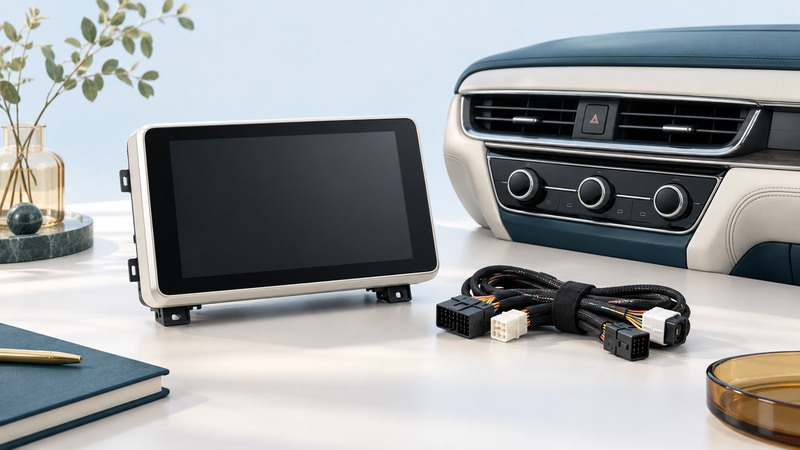
Choose an infotainment upgrade by the functions it must perform in your car. Start with the existing radio, factory options and phone, then ask an installer to document what will be retained, replaced or lost. A larger display is only one part of the result.
Identify which computer you mean
An infotainment computer handles functions such as media, navigation and connected displays. Vehicles also contain control modules for powertrain, body and safety systems. Those categories may exchange information, but a replacement radio is not a general replacement for the car’s control electronics. Keep engine tuning, fault diagnosis and safety-system modification outside an entertainment upgrade.
Write down the model year, trim, factory screen, premium-audio option, cameras, parking aids and connected services. Photograph the current menus while parked and list functions you actually use. An installer needs the exact configuration: two cars with the same model name may have different amplifiers, connectors and retained features.
State two or three desired improvements, such as dependable phone navigation, clearer calls or a usable reversing display. Make required existing functions explicit, especially climate settings or vehicle menus accessed through the original screen. This turns a product search into an acceptance specification.
Compare complete upgrade routes
On a narrow screen, scroll the table horizontally. Keyboard users can focus its region and use the arrow keys.
| Route | What to verify | Useful when |
|---|---|---|
| Keep the factory system | Supported software update, phone setup and working ports | The needed function already exists but is unreliable or unfamiliar |
| Add a vehicle-specific interface | Exact radio/trim support, retained controls and warranty | You want a documented integration while keeping the original display |
| Replace the head unit | Dash fit, harness, amplifier, cameras, microphone and vehicle-menu access | The complete replacement supports the functions you need |
| Use a separate device | Secure vehicle-compatible mount, power and sight lines | A simpler arrangement meets the task with acceptable placement |
Ask for part numbers for the radio, interfaces and accessories, not just a promise that it fits. The iDatalink Maestro FAQ explains that radio compatibility affects available feature retention and directs users to its vehicle/radio fit guide. It is one manufacturer’s example of why a matching plug alone is insufficient.
Have the installer mark each required function as retained, changed, unavailable or unverified. For a missing factory function, agree on a usable alternative before ordering. Include the cost of interfaces and labor so you can compare complete proposals.
Test the actual phone connection
Apple’s CarPlay setup guide distinguishes wired and wireless connections according to vehicle support. Google’s Android Auto setup guide likewise requires compatible equipment and specifies parked setup. Confirm the chosen head unit’s exact mode with your phone, software version and intended USB port or wireless connection.
Use your ordinary navigation and audio apps in the demonstration. Check microphone clarity, spoken directions during music, reconnecting after a restart and how another household phone is selected. Ask what continues to work when cellular service is unavailable and prepare any supported offline content before travel.
Record which features depend on the phone, a subscription, the vehicle’s modem or the head unit itself. A built-in app and phone projection can have different sign-ins and support lifetimes. Avoid buying on the assumption that every phone app will appear on the car display.
Resolve a feature gap before installation
At handover, check the agreed functions in the parked vehicle: steering-wheel controls, calls, all camera views, parking sounds and original settings. Have the installer demonstrate shutdown and the normal restart sequence. Report new warning lights or a failure to power down instead of experimenting with wiring or module resets.
Review readability and reach without blocking vents, instruments or sight lines. Complete account setup and menu exploration before moving. A feature that takes repeated visual attention deserves reconsideration even if the electronics operate correctly.
Keep a support and recovery record
Save the invoice, installed part numbers, firmware versions, instructions and settings backup if supported. Identify who supports each interface and how updates are obtained. Ask whether a later phone update could require radio firmware and whether the original system can be restored.
Before selling the vehicle, follow the equipment’s account-removal and reset instructions, and include the installation record for its next owner. Revisit compatibility after a significant software change. This record is also useful when a future technician needs to distinguish factory equipment from additions.
Save a practical worksheet
Download the car computers worksheet (plain text). Open it in any text editor, save a private copy, and fill in the prompts while you work. It includes the article link and supporting references. Record “unknown” when a question still needs evidence.