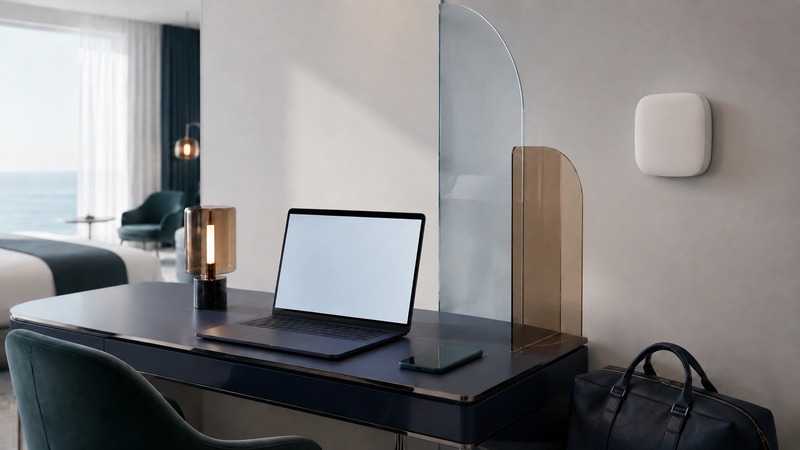
Hotel Wi-Fi has to do two jobs: connect your device to the building’s network and carry your traffic onward to the internet. A strong signal proves neither that you have completed the hotel’s sign-in nor that a video call will work reliably. Start by identifying which part is failing, then change one thing at a time.
Ask about the work you need to do
“Free high-speed internet” is not a performance specification. Before a work trip, ask whether access is available in the actual guest room, whether there are device or session limits, whether an upgraded tier costs extra, and whether the property supports your employer’s remote-access service. A meeting room or wired connection may be an option, but confirm its availability and price.
Ask a concrete question: “I need to join a two-way video meeting from my room at 8 a.m.; what support is available if the connection fails?” A general speed claim does not establish upload capacity, evening congestion, or how quickly the hotel can help. For a critical meeting, have a tested second connection and enough time to move to it.
Complete the hotel’s sign-in first
- Confirm the exact network name with the hotel. Similar names can belong to neighboring businesses or another guest. Use the instructions supplied by reception or the room information.
- Join through your device’s Wi-Fi settings. Wait for a sign-in notification or welcome page. A captive portal is the page that asks for access details or acceptance of terms before internet use.
- Use the hotel’s own access details. If a room number, surname, or voucher fails, ask reception to check the spelling, activation, and device allowance. Repeated guesses rarely solve a booking-system mismatch.
- Test an ordinary website. Only then open the work application and any required VPN. If the portal loops or never appears, record the message and ask for the hotel’s supported connection procedure.
On an iPhone or iPad, Apple’s captive-network instructions explain how to select the network and reopen its sign-in with Join Network. Keeping a connection “Without Internet” does not complete authentication. On Windows, the Microsoft connection troubleshooter can help distinguish device connectivity from an internet outage.
If your managed computer has an always-on VPN or security policy, ask your IT team for its approved captive-portal procedure. Do not disable a required firewall, install an unfamiliar certificate, or bypass a browser certificate warning to make a welcome screen work. The hotel should provide a supported way to authenticate.
Use the symptom to choose the next check
On a small screen, scroll the table sideways to read all columns.
| What you notice | What it may indicate | A useful next step |
|---|---|---|
| No hotel network appears | Wi-Fi is off, coverage is weak, or the device cannot use the available network. | Check Wi-Fi settings and compare with a second device in the same place. |
| Connected, but no websites load | Sign-in is incomplete, access expired, or the hotel has an upstream problem. | Reopen the portal and ask whether other guests are affected. |
| Works in the lobby, fails in the room | Coverage or interference may differ between locations. | Give support the room and location; ask for an alternative workspace or room. |
| Browsing works, calls break up | Upload capacity, delay, packet loss, or competing traffic may be the problem. | Pause your own large transfers and test the actual meeting application. |
| One device fails; another works | Device configuration, a session limit, or app-specific trouble is possible. | Check the device allowance and the exact error before resetting anything. |
These are clues, not diagnoses. A second device is only a useful comparison if it is really using hotel Wi-Fi; a phone may silently use cellular data. Likewise, two tests made hours apart may reflect different network demand. Record the time, room, device, sign-in state, and what succeeded.
Leave the hotel’s routers and access points alone. Rebooting a shared device or changing its settings can interrupt other guests. On your own device, reconnecting or restarting is a reasonable early check; a full network reset is a later step because it can remove saved connections and other settings.
Test the task, not just the download number
Download speed describes traffic coming to you; upload speed describes traffic leaving you. Delay affects responsiveness, while lost or unevenly delivered packets can cause freezes or broken audio. A speed test is a snapshot to one server. It is useful evidence, but it is not a guarantee about a meeting service or tomorrow morning.
Before a meeting, try a short call with the camera and screen sharing settings you intend to use. Pause your own cloud backups and large downloads, use headphones, and have the dial-in or audio-only option ready if the service offers one. Lowering video demand can help a constrained connection, but it will not repair an outage.
Separate encryption from trust
The FTC’s current public Wi-Fi guidance explains that widespread website encryption has improved hotspot safety. HTTPS protects the connection to the site; it does not prove that the site itself is honest. Check the address, keep software updated, and use strong account authentication.
For Windows, use the public network profile and keep the firewall enabled. Microsoft’s network-profile guidance explains how this limits discovery and sharing with other devices. A hotel network is not an invitation to expose personal folders or printers.
A VPN encrypts traffic carried through its tunnel to the VPN endpoint. You still have to trust that service and follow your employer’s requirements. It does not strengthen a weak radio signal, supply missing bandwidth, or make a fraudulent website trustworthy. Cloudflare’s VPN explanation also discusses provider trust and possible performance costs.
Prepare the alternative before you need it
A phone hotspot can be a useful fallback if your mobile plan permits tethering and has adequate coverage and data. Check roaming charges and limits before turning it on abroad. Test from the room, keep the phone charged, and use a strong hotspot password. A travel router is only an option where the hotel permits it; it does not automatically solve portals or device limits.
Download the hotel Wi-Fi check and support worksheet. It gives you a compact record to share with reception or IT without including passwords. Save essential travel tickets and maps ahead of time so a connection failure does not also become an arrival problem.
Related resources
- Plan a Nagoya hotel stay
- Prepare mobile attraction tickets
- Choose and pack your luggage
- Explore all travel resources
Researched and updated September 5, 2026. Check the linked official sources for conditions and policies that apply to your dates and destination.