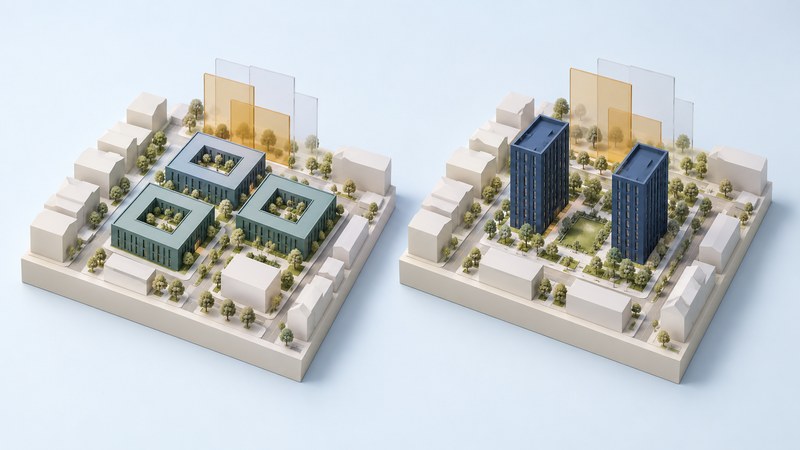
A useful 3D planning workflow connects a question about a place to a model, a comparison and an understandable result. Choose tools according to the decision: exploring building volumes, comparing land-use scenarios, analyzing early environmental effects, presenting a walk-through or publishing an interactive map.
This guide helps planners, designers and developers choose that workflow. Start with a defined site, permission to use its data and a question that can be assessed. Product roles and linked resources were checked on October 3, 2026; the comparison describes documented capabilities, not a hands-on performance benchmark.
Choose the tool for the deliverable
One project may use a planning tool to create alternatives and a visualization tool to communicate them. Keep a designated source model and an export record so that every presentation corresponds to an identifiable design revision.
| Tool and role | Useful inputs and outputs | Selection consideration |
|---|---|---|
| ArcGIS Urban Planning scenarios | Use geographic context, zoning and development information to compare 3D scenarios, metrics and stakeholder feedback. | A strong candidate when the decision concerns land use and development capacity. Budget for preparing the planning data and configuring meaningful metrics. |
| Autodesk Forma Site Design Early site design | Explore massing in site context, compare environmental analyses and carry proposals into connected design workflows. | Consider it for early alternatives and rapid feedback. Check local contextual-data coverage and export support. Autodesk lists standalone subscription and AEC Collection access. |
| ArcGIS CityEngine Procedural city modeling | Generate urban geometry from rules and geographic data, then iterate on design parameters. | Useful when repeatable rules matter across many buildings or blocks. Allow time to learn the rule system and validate generated geometry. |
| Twinmotion Visual communication | Bring in a design model and create presentation images, animation and immersive experiences. | Consider it when the immediate deliverable is a convincing view or walk-through. Confirm hardware requirements, import workflow and sharing entitlement. |
| CesiumJS / Cesium for Unreal Custom geospatial applications | Combine terrain, buildings and other spatial content in a web viewer or an Unreal experience. | Choose this route when interaction must be customized. It requires development and hosting decisions; data and hosted-service terms are separate from the open-source code. |
The learning-effort judgments above are editorial guidance: an existing GIS team, visualization specialist and JavaScript team will start from different strengths. Test one representative file and one sharing route before committing a whole project.
For procurement, verify authoring seats, viewer access, cloud storage or streaming, export permissions and the rights to redistribute source data. ArcGIS Urban and CityEngine have their own product access arrangements. Twinmotion publishes eligibility and paid-seat/Cloud conditions on its product page. CesiumJS is Apache-2.0-licensed, while content and services can have separate costs and terms. Use the linked vendors' current terms for your organization and region; a free component alone does not define the total project cost.
A first pilot should answer three questions: can the tool read the actual data, can a colleague inspect the result, and can the team revise the model without rebuilding every presentation? Use 3D Programming: Explore Your First Scene if your team needs a foundation in cameras, geometry and lighting before building a custom viewer.
Prepare a baseline that can be trusted
Collect only the detail the question needs. A rough massing comparison might start with terrain, building footprints and heights. A pedestrian presentation needs more attention to entrances, ground levels, paths and sightlines. Keep proposed geometry separate from existing conditions.
- Reference: record coordinate system, horizontal units, height reference and model origin. Check a known location and elevation after import.
- Provenance: record source, survey or capture date, accuracy information, license and any transformations for each dataset.
- Meaning: distinguish surveyed, mapped, estimated and invented geometry. Record how missing building heights were filled.
- Interchange: test a small export before scaling up. Check dimensions, orientation, materials, identifiers and attributes at the destination.
- Revision: give each baseline and proposal a version. Save the inputs and settings used to generate analytical results.
When a building floats above terrain or appears sunk into it, investigate origin, units and height reference before editing the geometry by eye. When an import preserves appearance but loses identifiers, keep an explicit mapping back to the source objects if those identifiers are needed for review.
For coordinate-quality background, see GPS Surveying: Reference Systems, Field Records, and Quality Checks. Choose the level of positional confidence required by the actual planning question.
Worked example: compare two redevelopment options
Fictional exercise. A team is studying a 10,000 m² site. It wants to compare a lower, wider scheme with a taller, narrower scheme while holding total gross floor area constant. These simple boxes are an arithmetic example, independent of any vendor model. The hero illustration is conceptual and does not encode these quantities.
| Metric | Option A | Option B |
|---|---|---|
| Buildings | 3 | 2 |
| Footprint per building | 1,000 m² | 750 m² |
| Full floors per building | 4 | 8 |
| Total footprint | 3 × 1,000 = 3,000 m² | 2 × 750 = 1,500 m² |
| Gross floor area | 3 × 1,000 × 4 = 12,000 m² | 2 × 750 × 8 = 12,000 m² |
| Floor area / site area | 12,000 / 10,000 = 1.2 | 12,000 / 10,000 = 1.2 |
| Site outside building footprints | 7,000 m² | 8,500 m² |
The calculation assumes identical full floor plates within each building, with no setbacks, voids or excluded floor areas. It uses gross floor area as defined for this exercise; an actual jurisdiction's area definitions must be applied separately. The space outside the footprints includes everything remaining on the site: circulation, servicing, parking and landscaping still need allocation.
Option B leaves 1,500 m² more site area outside the building footprints. That result supports a question about ground-level allocation. It establishes neither better daylight nor better wind conditions. Those questions require their own inputs and analysis.
- Build the common context. Import the same surrounding buildings and terrain for both proposals. Use one site boundary and one set of measurement units.
- Model both options. Record floor heights, setbacks and any other assumed dimensions. Check the model's area totals against the simple calculation.
- Choose one additional question. For example, compare shadow patterns at specified times using the same location, date, timezone and surrounding geometry. Name the tool and method used.
- Make matched views. Save identical cameras and lighting settings for the alternatives. Include a ground-level view as well as an aerial view.
- Write a decision note. State what changed, what the calculations establish and which questions remain open. Record the model revision behind every figure.
Keep uncertainty visible. If surrounding heights are estimated, test whether a plausible change to them alters the conclusion. A design choice that reverses under a small input change needs better evidence before the comparison is treated as decisive.
Use AI assistance at a defined step
Autodesk's current Forma description identifies site automation and rapid wind and noise analysis among its AI capabilities. Treat these as specific tools with stated inputs and assumptions. Record which feature produced a result and review its documentation before comparing alternatives.
Generate alternatives
Specify the constraints and objective before generating layouts. Check dimensions, access, required retained features and excluded areas for each candidate. A larger set of options helps only when the team can explain why one meets the brief better.
Estimate performance
Use rapid results to identify options worth investigating. Keep input conditions consistent, save the method and settings, and obtain the appropriate detailed analysis when the decision demands it.
Create presentation images
Use model-based views as references and compare the generated image with the source. Check building heights, openings, roads, trees and neighboring structures. Label illustrative changes and keep the original model view beside the image.
Assist with scripts and records
AI can help draft import scripts or review a data inventory. Test scripts on a small copy with known expected results; check units, object counts and attributes before applying them to the full model.
Procedural modeling also creates alternatives, using explicit rules; its role should be explained separately from generative image tools. Esri's 2024 CityEngine visualization study describes experiments with external generative tools and model screenshots. It is a useful illustration of a workflow, rather than evidence that every shown capability is built into CityEngine.
For public review, retain an unembellished view of the model and identify any AI illustration. A generated streetscape can help discuss atmosphere and appearance; measurements and scenario metrics should remain traceable to the underlying geometry and analysis.
Keep the selection and comparison together
Download the tool-selection and scenario worksheet (plain text). It includes the fictional calculation, blank project fields, data-provenance checks and a review record. Complete one copy for the project, then preserve a revision for each formal comparison.
Return to the Programming guides for related tools and examples.